



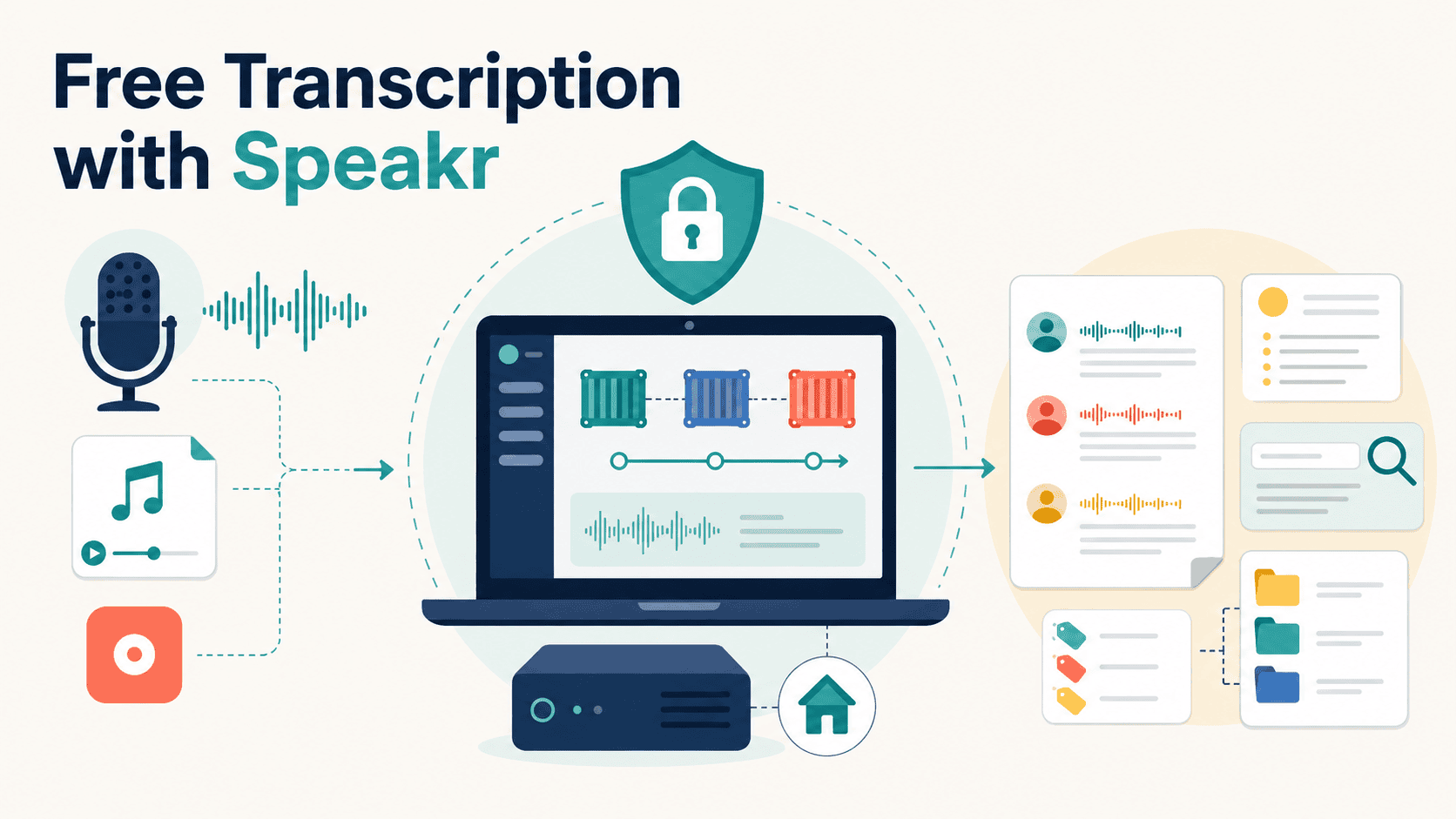
# Running Your Own AI-Powered Transcription Engine: A Practical Guide to Speakr and Self-Hosted Speech-to-Text
Transcription has long been one of those tasks that sits in an uncomfortable gray zone between automation and manual labor. For years, professionals had two choices: pay recurring fees to cloud-based transcription services or spend tedious hours manually converting audio to text. Now, a growing community of researchers, journalists, and machine learning practitioners is embracing a third path — deploying their own transcription infrastructure on hardware they control.
At the center of this movement is a free, open-source platform called Speakr, developed by engineer Murtaza Nasir. It transforms raw audio into organized, searchable, AI-enhanced notes while keeping sensitive recordings entirely off third-party servers. Whether you are conducting confidential interviews, documenting meetings bound by non-disclosure agreements, or simply building a personal knowledge base from voice recordings, running your own transcription stack gives you control over both the process and the data.
—
## Why Self-Hosted Transcription Is Gaining Momentum
The appeal of self-hosted transcription goes beyond cost savings, though those matter too. For professionals in journalism, academic research, legal practice, and corporate strategy, the privacy implications of sending audio files to external servers can be a dealbreaker. When your audio never leaves your own machine, you eliminate an entire class of data leakage risks.
Speakr is built to address this need directly. It is released under the AGPLv3 license, meaning anyone can inspect, modify, and distribute the code. The platform is deployed through Docker, making it portable across Linux, macOS, and Windows systems. It even includes a Progressive Web App interface, which means you can access your transcription workspace from a mobile browser without installing anything extra.
### A Note on True Costs
It is important to understand that while Speakr itself is free and open-source, many of its available transcription backends depend on external APIs that charge per-minute fees. Services like OpenAI, AssemblyAI, and Deepgram fall into this category. The only configuration that removes ongoing API costs completely is running WhisperX locally, which requires a GPU but processes everything on your own hardware. This guide will walk you through each option so you can weigh the trade-offs clearly.
—
## Getting Started: Installation and Configuration
The first step is having Docker and Docker Compose installed on your machine. Docker Desktop bundles both tools and works across major operating systems. Once Docker is running, setting up Speakr involves a few simple commands. You create a dedicated directory, pull the project’s configuration files, and customize an environment file with your preferences.
In that environment file, you will set administrator credentials, choose which transcription backend to use, and provide API keys if you are connecting to a cloud-based service. The default admin username and password are explicitly flagged as insecure, so generating strong credentials from the start is essential — especially if the machine is accessible on any shared network.
Launching the application is then a single command, after which the web interface becomes available through your browser. For users on slower internet connections, Speakr also publishes a lightweight container image that is significantly smaller in size. It includes all the core functionality, with the only difference being that a particular AI-powered search feature falls back to basic keyword matching instead of semantic understanding.
—
## Understanding the Transcription Backends
Speakr’s architecture is connector-based, which means you can swap between different speech recognition engines without changing how you interact with the platform. Each backend has its own strengths, and the right choice depends on your priorities around cost, accuracy, privacy, and hardware.
### Backend Comparison
| Backend | Setup Complexity | Ongoing Cost | Diarization | Voice Recognition |
|—|—|—|—|—|
| OpenAI Cloud API | API key only | Pay-per-use | Yes | No |
| WhisperX (Local) | GPU + container setup | Free after hardware purchase | Yes (highest quality) | Yes |
| AssemblyAI | API key only | Pay-per-use with free credits | Yes | No |
| Deepgram | API key only | Pay-per-use | Yes | No |
### Choosing the Right Option for You
For users who want the simplest setup, the OpenAI connector requires nothing more than an API key and a few configuration lines. It supports speaker diarization, which means it can identify and label different speakers in a conversation automatically.
If your priority is data sovereignty and zero recurring costs, WhisperX is the standout choice. Because it runs entirely on your own GPU, your audio never traverses the internet. It also provides the highest-quality diarization available in the platform and enables voice profile features — the system learns to recognize individual speakers across multiple recordings by storing vector representations of their voices. A GPU with 6 to 8 GB of video memory is recommended to run this backend comfortably.
AssemblyAI offers a generous onboarding experience with free credits for new accounts that do not even require a credit card to redeem. It is particularly well-suited for processing long, multi-speaker recordings in a single operation.
Switching between backends later is straightforward — it is simply a matter of updating a few values in your configuration file, not reinstalling anything.
—
## Recording, Importing, and Processing Audio
Once Speakr is running, there are three main ways to get audio into the system. You can record directly through the browser-based interface, which captures audio from your microphone, system output, or both simultaneously. The platform provides platform-specific guidance for setting up virtual audio devices on macOS, Windows, and Linux, making it possible to capture both sides of a phone call or a shared-screen presentation.
If you already have audio files, you can drag and drop them into the interface. Speakr handles format conversion internally, so most common audio and video file types work without any pre-processing on your end. For bulk workflows, you can set up a watched folder on your server and drop files in — the system will automatically detect and process them, which is ideal for batch jobs like processing an entire week of recorded calls overnight.
### What You Get After Processing
Every completed transcription includes a full text version with clickable timestamps so you can jump directly to any moment in the original audio. An AI-generated summary breaks the content into bullet points, key takeaways, and suggested next steps. When diarization is enabled, each speaker’s contributions are clearly labeled. The platform even generates a title for each recording automatically.
—
## Organizing Your Growing Library of Transcripts
As your collection of transcribed recordings expands, keeping everything structured becomes essential. Speakr provides two main organizational layers: folders and tags.
Folders function like traditional directory structures. Tags, however, go much further. Each tag can carry its own custom AI prompt and transcription settings, meaning that the way a recording is summarized depends on what category it belongs to. For instance, a tag labeled “Research Interview” might instruct the summarization engine to pull out methodology details, key findings, and direct quotes from participants. A tag labeled “Team Standup” might instead focus on blockers, decisions made, and assigned action items.
Tags can also be combined. Applying both “Client Meeting” and “Legal Review” tags would prompt the AI to highlight contractual terms and legal implications alongside the standard meeting notes.
Retention policies add another layer of automation. You can set rules that automatically delete recordings after a specified period based on their tag or folder, keeping your storage lean. Individual recordings can be marked as protected to exclude them from any automated cleanup.
### Semantic Search Across Your Entire Library
One of the most powerful features is called Inquire Mode, which enables natural-language search across all your stored transcripts. Instead of hunting for a specific keyword, you can ask a question like “What did the client say about the launch timeline?” and Speakr will surface the relevant passages from across your entire library. This is a game-changer for researchers reviewing dozens of interviews or professionals who need to quickly locate specific discussion points in past meetings.
—
## Collaboration and Team Workflows
Speakr is not limited to solo use. It supports multi-user environments with features designed for small teams, research groups, and collaborative projects.
### Shared Workspaces
Groups allow you to create shared workspaces where any recording tagged with that group’s identifier becomes automatically visible to all group members. This removes the friction of manually sharing transcripts after each recording session.
### Granular Access Control
For scenarios where you need to share individual recordings with external parties, Speakr supports granular permissions. You can generate view-only or edit links, and create secure public URLs that recipients can access without needing a Speakr account.
### Enterprise Authentication
Teams already using an identity provider can integrate Single Sign-On through OpenID Connect. Supported providers include Keycloak, Azure Active Directory, Google, and Auth0, making it straightforward to fit Speakr into existing organizational authentication infrastructure.
### API and Webhook Integrations
A built-in REST API with interactive documentation enables programmatic access to all features. Webhooks let you trigger external actions when recordings finish processing. For example, you could set up a pipeline where a completed meeting transcription automatically sends a notification to a team channel and extracts action items into a project management tool.
—
## Advanced Features for Power Users
Once the basics are in place, several advanced configurations can significantly enhance your workflow.
### Custom Vocabulary and Hotwords
Transcription models sometimes struggle with domain-specific terminology. Speakr lets you define custom vocabulary lists and hotwords that bias the model toward correctly recognizing specific names, acronyms, and technical phrases. This can be configured globally or applied selectively per tag or folder. For professionals working in specialized fields, this feature dramatically improves transcription accuracy for terms like model names, statistical measures, or proprietary jargon.
### Automated Export Pipelines
Completed transcripts can be automatically written to a file template in a location you designate. If you map the export destination to your preferred note-taking application’s storage folder, transcripts appear in your knowledge base the moment processing finishes — no manual export required.
### Cloud Storage Options
While local storage is the default, Speakr supports S3-compatible object storage for teams that want transcripts and audio stored remotely. Supported providers include Amazon S3, MinIO, Backblaze B2, Cloudflare R2, and Wasabi. This is entirely optional and configured per your needs.
### Usage Budgets for Teams
Administrators can set per-user caps on language model token consumption and transcription minutes. This is particularly useful for small teams that share API costs and need to keep spending predictable.
### Persistent Voice Profiles
When using the WhisperX backend, the system stores speaker embeddings in its database across sessions. After processing a speaker’s voice in one recording, Speakr can automatically identify that person in future recordings without requiring manual labeling each time. This feature requires the full WhisperX container with GPU support and cannot be used with the lightweight image.
### Staying Secure in Multi-User Deployments
Because Speakr accepts untrusted audio uploads in team configurations, keeping the software updated is critical. Recent releases have addressed vulnerabilities including cross-site scripting flaws, webhook server-side request forgery risks, and a bundled FFmpeg security issue. Regular updates should be part of any operational checklist for a multi-user deployment.
—
## Frequently Asked Questions
**Is Speakr completely free to use?**
Speakr is free and open-source to download and run. However, if you use cloud-based transcription backends like OpenAI or AssemblyAI, you will incur per-minute API charges from those providers. The only configuration that avoids all ongoing costs is running WhisperX locally on your own GPU.
**What hardware do I need?**
For cloud-based backends, any computer with Docker and an internet connection is sufficient. For the WhisperX self-hosted backend, you need a machine with a CUDA-capable GPU. An Nvidia GPU with at least 6 to 8 GB of video memory is recommended to handle transcription without memory errors.
**Can I use Speakr on my phone?**
Yes. Speakr includes a Progressive Web App interface that works in mobile browsers, giving you access to your transcription workspace from a phone or tablet without installing a dedicated application.
**How accurate is Speakr compared to commercial services?**
Speakr uses the same Whisper model family that powers many commercial transcription products, so its accuracy is on par with paid services when using equivalent models. The WhisperX backend in particular delivers best-in-class diarization quality.
**Can I switch transcription backends after I start using Speakr?**
Yes. The connector architecture auto-detects your backend from the configuration file. Switching means updating a few settings in your environment file — no reinstallation is necessary.
**What operating systems does Speakr support?**
Speakr runs on Linux, macOS, and Windows through Docker. The Docker-based deployment ensures consistent behavior across all three platforms.
**How does Speakr handle security in team environments?**
Speakr includes admin authentication, granular sharing controls, SSO integration, and signed webhooks. The development team actively patches security vulnerabilities, and users are encouraged to stay updated, especially in multi-user deployments where untrusted audio files are uploaded.
**What file formats can I upload?**
Speakr uses FFmpeg internally for format conversion, so most common audio and video file types are supported. You can drag and drop files directly without any pre-processing.
—
## Conclusion
Speakr represents a compelling option for anyone who regularly works with audio recordings and values control over their data. It combines the transcription quality of leading speech recognition models with the privacy and flexibility of self-hosted infrastructure, all without an upfront licensing fee.
The setup does require some comfort with Docker and containerized applications, and the total cost depends heavily on which backend you choose and how much audio you process. Users on cloud-based APIs will see usage costs proportional to their volume, while those willing to invest in a compatible GPU can run the entire operation with near-zero ongoing expenses.
For data scientists, machine learning engineers, graduate students, and researchers, Speakr also serves as a practical example of how modular AI architectures work — swappable inference engines, event-driven webhooks, embedding-based semantic search, and API-first design. Learning to use it well means learning something meaningful about how modern AI-powered applications are built.
Start by deploying the quick start, transcribe a few of your own recordings, and evaluate whether the workflow fits your needs before diving into the more advanced configurations. The gap between first installation and a productive daily workflow is smaller than it might appear at first glance.
Thank you for reading
