



# Introduction
Saving data to files is a fundamental skill in Python. It allows you to store information permanently rather than losing it once your program ends. File writing is useful for keeping results, logs, reports, user input, configuration settings, and structured data.
In this tutorial, you’ll discover how to create text files, write several lines, add content to existing files, manage directories, and export data in CSV and JSON formats. You’ll also explore the most frequently used file modes — w, a, x, and r — and learn when each one is appropriate.
By the time you finish, you’ll be equipped to build Python programs that save results, reports, logs, and structured data to files with confidence.
# Writing Your First Text File
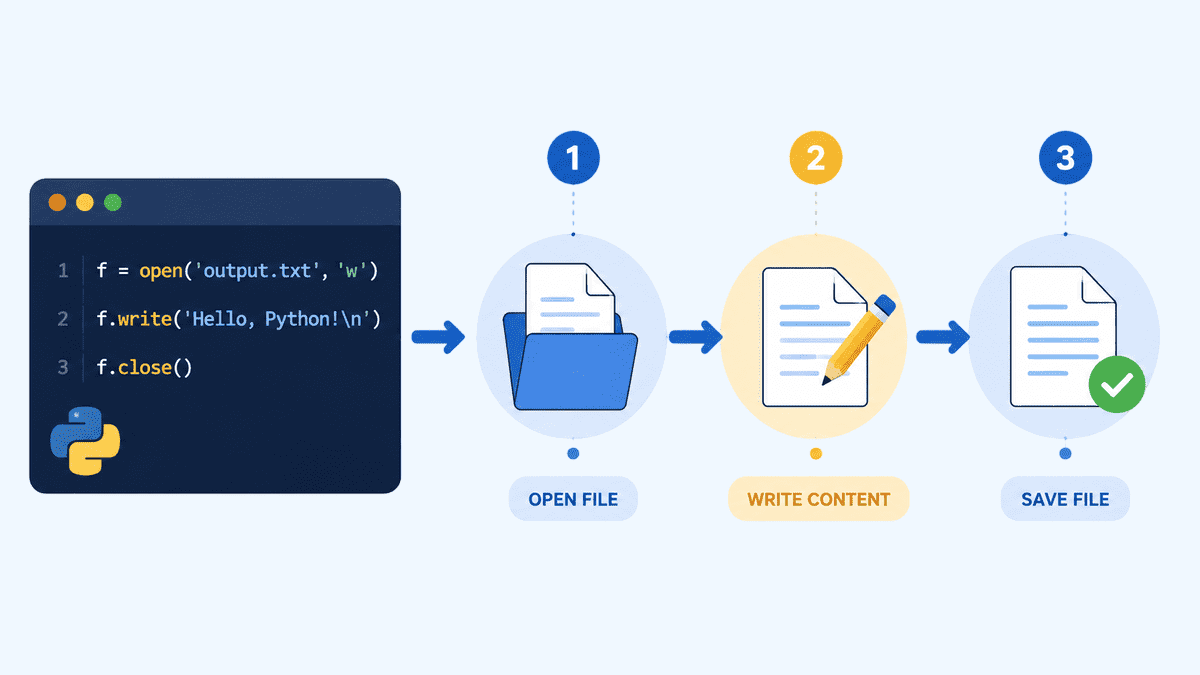
The easiest way to write to a file is by using Python’s built-in open() function.
The w mode stands for write mode. If the file doesn’t exist yet, Python will create it. If the file already exists, Python will erase its current contents and start fresh.
file = open("message.txt", "w")
file.write("Hello, this is my first file written with Python.")
file.close()
After executing this code, Python generates a file called message.txt in the same directory as your notebook or script.
You can open the file again to verify what was stored.
file = open("message.txt", "r")
content = file.read()
file.close()

print(content)
Output:
Hello, this is my first file written with Python.# Using with open(): The Better Way
While it’s possible to open and close files manually, the preferred method is to use with open().
This approach automatically closes the file once the code block is done. It’s cleaner, more reliable, and widely adopted in real-world Python projects.
with open("message.txt", "w") as file:
    file.write("This file was written using with open().")

with open("message.txt", "r") as file:
    content = file.read()

print(content)
Output:
This file was written using with open().Using with open() is considered best practice because you never have to worry about forgetting to close the file yourself.
# Understanding File Modes
When you open a file, the mode tells Python what operation you intend to perform.
| Mode | Meaning |
|---|---|
w | Write to a file. Creates a new file or overwrites an existing file. |
a | Append to a file. Adds content to the end without deleting existing content. |
x | Create a new file. Fails if the file already exists. |
r | Read a file. Fails if the file does not exist. |
For writing files, the most common modes are w and a. Choose w when you want to create a brand-new file or replace what’s already there. Choose a when you want to tack on new content to the end of an existing file.
# Writing Multiple Lines
To write several lines, simply include the newline character n at the end of each line.
with open("notes.txt", "w") as file:
    file.write("Line 1: Learn Pythonn")
    file.write("Line 2: Practice file handlingn")
    file.write("Line 3: Build small projectsn")
Read the file back:
with open("notes.txt", "r") as file:
    print(file.read())
Output:
Line 1: Learn Python
Line 2: Practice file handling
Line 3: Build small projects
Another option is to use writelines(), which lets you write an entire list of strings to a file in one go.
tasks = [
    "Write Python coden",
    "Run the notebookn",
    "Check the output filen"
]

with open("tasks.txt", "w") as file:
    file.writelines(tasks)
Read the file back:
with open("tasks.txt", "r") as file:
    print(file.read())
Output:
Write Python code
Run the notebook
Check the output file
One key thing to keep in mind: writelines() does not insert line breaks on its own. You have to add n to each string yourself.
# Appending to a File
There are times when you don’t want to overwrite what’s already in a file. Instead, you’d like to add new content to the end.
For this, use append mode: a.
with open("journal.txt", "w") as file:
    file.write("Day 1: I started learning Python file handling.n")

with open("journal.txt", "a") as file:
    file.write("Day 2: I learned how to append text to a file.n")
Read the file:
with open("journal.txt", "r") as file:
    print(file.read())
Output:
Day 1: I started learning Python file handling.
Day 2: I learned how to append text to a file.
Append mode is handy when you’re dealing with logs, journals, reports, or any file where you need to keep adding new content.
# Creating Files Safely
If you want to create a new file without overwriting an existing one, use x mode.
This mode only creates a file if it doesn’t already exist. If the file is already there, Python throws a FileExistsError.
try:
    with open("new_file.txt", "x") as file:
        file.write("This file was created using x mode.")
    print("File created successfully.")
except FileExistsError:
    print("The file already exists, so Python did not overwrite it.")
If the file doesn’t exist, you might see:
File created successfully.
If the file is already present, you might see:
The file already exists, so Python did not overwrite it.
This approach is helpful when you want to prevent existing files from being accidentally replaced.
# Working with File Paths
By default, Python stores files in the same directory where your notebook or script is running.
If you want to store files inside a particular folder, you can use pathlib.
from pathlib import Path

output_folder = Path("output")
output_folder.mkdir(exist_ok=True)

file_path = output_folder / "summary.txt"

with open(file_path, "w") as file:
    file.write("This file was saved inside the output folder.")

print(f"File saved to: {file_path}")
Output:
File saved to: output/summary.txt
Now read the file:
with open("output/summary.txt", "r") as file:
    print(file.read())
Output:
This file was saved inside the output folder.
The mkdir(exist_ok=True) call creates the folder if it’s not already there. If the folder exists, Python doesn’t raise an error.
# Writing CSV Files
CSV files are great for storing tabular data, like rows and columns. They’re commonly opened in spreadsheet applications such as Excel or Google Sheets.
To write a CSV file in Python, use the csv module.
import csv

students = [
    ["Name", "Score"],
    ["Ayesha", 92],
    ["Bilal", 85],
    ["Sara", 88]
]

with open("students.csv", "w", newline="") as file:
    writer = csv.writer(file)
    writer.writerows(students)
Read the CSV file:
with open("students.csv", "r") as file:
    print(file.read())
Output:
Name,Score
Ayesha,92
Bilal,85
Sara,88
The newline="" argument prevents extra blank lines from appearing when writing CSV files, particularly on Windows.
# Writing JSON Files
JSON is another popular format for saving structured data. It’s frequently used for dictionaries, API responses, configuration files, and nested data.
To write JSON files in Python, use the json module.
import json

profile = {
    "name": "Ayesha",
    "role": "Data Analyst",
    "skills": ["Python", "SQL", "Excel"],
    "active": True
}

with open("profile.json", "w") as file:
    json.dump(profile, file, indent=4)
Read the JSON file:
with open("profile.json", "r") as file:
    print(file.read())
Output:
{
    "name": "Ayesha",
    "role": "Data Analyst",
    "skills": [
        "Python",
        "SQL",
        "Excel"
    ],
    "active": true
}
The indent=4 argument makes the JSON file more readable.
# Common Beginner Mistakes
Here are some typical mistakes beginners make when writing files in Python.
| Mistake | What Happens | How to Fix It |
|---|---|---|
| Forgetting to close the file | Changes may not be saved properly | Use with open() |
Using w instead of a | Current data is erased | Apply a to add content |
Omitting n | Output stays on a single line | Insert line breaks |
| Saving to a nonexistent directory | Python throws an exception | Make the directory beforehand |
| Saving non-text data as-is | Python might trigger a TypeError | Transform data to strings or opt for CSV/JSON |
# Final Thoughts
Saving data to files is among the most practical skills for Python beginners. I recall participating in a coding contest during my second semester of engineering and spending nearly an hour struggling to store a file. Had I realized how straightforward it was, I could have taken the prize.
Storing files lets you keep logs, preserve program results, generate reports, maintain user information, and even manage basic databases with formats like JSON. The great thing is that Python’s file operations are built-in, efficient, and ready to use immediately.
For most scenarios, rely on with open() since it handles file closure automatically. Choose w to write or replace a file, a to add new content, and x to safely create a file without overwriting an existing one.
Abid Ali Awan (@1abidaliawan) is a certified data scientist who enjoys developing machine learning models. Currently, he concentrates on producing content and authoring technical articles on machine learning and data science. Abid holds a Master’s in technology management and a bachelor’s in telecommunication engineering. His goal is to develop an AI solution using a graph neural network to support students dealing with mental health challenges.
