



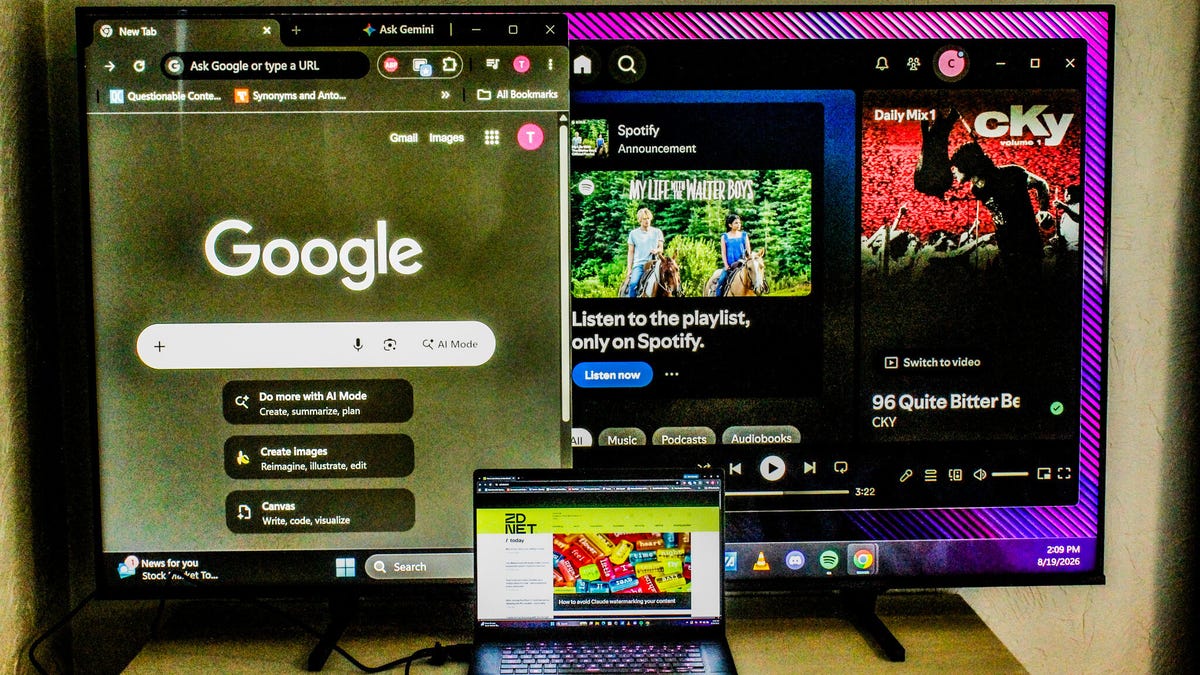
**Turn Your TV into a Monitor: A Complete Guide for PC and Mac**
Using a television as a computer monitor is a practical and cost-effective solution for enhancing your digital workspace. Whether you need a larger display for work, a secondary screen for multitasking, or a temporary monitor in a pinch, your TV can serve this purpose well. This guide explains how to connect your TV to various operating systems and offers tips for optimizing picture quality.
### Why Use a TV as a Monitor?
The primary advantage is cost and screen size. High-end computer monitors, particularly large OLED or 4K models, can be expensive. Televisions, especially mid-range options, often provide more screen real estate for a lower price. This makes them ideal for use as an extended desktop, a primary display for media consumption, or a dedicated screen for streaming devices.
### How to Connect Your TV to Your Computer
The method you use depends on your computer’s available ports.
**1. The Wired Connection (HDMI)**
This is the most common and reliable method.
* **Step 1:** Connect one end of an HDMI cable to your computer’s HDMI port and the other end to your TV’s HDMI port.
* **Step 2:** Power on your TV and set the correct HDMI input source using your TV remote.
* **Step 3:** Your computer should automatically detect the TV. If not, right-click your desktop on a Windows PC and select “Display Settings” to detect and configure the second screen.
**Dealing with Different Ports:**
If your laptop uses a Thunderbolt or DisplayPort and your TV only has HDMI, you will need a simple and affordable adapter (typically $10-15).
* Use a USB-C to HDMI adapter for Thunderbolt/USB-C ports.
* Use a DisplayPort to HDMI adapter for DisplayPort connections.
* *Note:* While these adapters work perfectly for display, they do not support the high-speed data transfer rates of a native DisplayPort or Thunderbolt connection.
**2. The Wireless Connection (Screen Mirroring)**
If you prefer a clutter-free setup, most modern smart TVs support wireless screen mirroring.
* **For Apple Users:** Use AirPlay to mirror your Mac or iPhone screen to the TV.
* **For Android/Windows Users:** Use Google Cast (often labeled as “Cast Screen” or “Smart View”) to mirror your device.
* **Important Caveat:** Wireless connections can introduce input lag (a delay between your actions and the display) and may reduce image resolution as data is compressed for transmission. For gaming or precise editing, a wired connection is strongly recommended.
### Configuring Display Settings
Once connected, you may need to adjust how your screens work together.
* **As a Mirror:** In your display settings, you can choose to “Mirror Displays,” which shows the exact same image on both your computer and TV.
* **As an Extended Desktop:** This is the most common use case. In settings, you can drag and drop a representation of your TV to the side of your main monitor. This allows you to move windows between screens, effectively giving you a larger workspace.
* **Resolution Settings:** Ensure your TV’s resolution is set correctly. If your computer cannot output a 4K signal and your TV is 4K, set the TV to “1080p” or “Auto” to avoid blurry text. Conversely, if you have a 1080p TV, set your computer to that resolution.
### Getting the Best Picture Quality
To ensure a smooth and clear picture, a few settings are crucial.
* **Match Resolutions:** As mentioned above, always match the output resolution of your computer to the capabilities of your TV.
* **Use PC Picture Mode:** In your TV’s picture settings, look for a “PC,” “Game,” or “External Input” mode. This mode disables motion smoothing and other video processing features that can cause lag and make text appear blurry.
* **Enable Game Mode:** If a PC mode isn’t available, turn on your TV’s “Game Mode.” This setting minimizes input lag, which is critical for a responsive experience when using your TV for computing tasks.
### Frequently Asked Questions (FAQ)
**Q: Will using a TV as a monitor damage my eyes?**
A: Not inherently. However, because TVs are often larger and viewed from a farther distance than traditional monitors, you may find yourself subconsciously sitting too close or straining to read text. Ensure your viewing distance is comfortable and that text size is adjusted appropriately in your operating system settings.
**Q: Why is there a delay or lag when I use my TV as a monitor?**
A: Lag is usually caused by input latency, which is common in wireless connections. Even with a wired HDMI connection, some TVs have built-in video processing (like upscaling) that can introduce a few milliseconds of delay. To fix this, switch your TV to its “PC” or “Game” mode, which bypasses these processing steps.
**Q: Can I use my TV as a monitor for a laptop?**
A: Yes, absolutely. You can connect a laptop to a TV just as you would with a desktop PC. If your laptop has a different port than your TV (e.g., USB-C instead of HDMI), simply use the appropriate adapter.
**Q: Will the TV’s built-in speakers work, or do I need external speakers?**
A: This varies. Many modern TVs have decent built-in speakers and headphone jacks. However, some laptops, particularly thinner models, may not have the power to drive a TV’s speakers via a standard headphone jack. You may need to rely on the TV’s speakers, use Bluetooth speakers, or connect to a separate sound system.
### Conclusion
Converting your TV into a computer monitor is a versatile and budget-friendly way to upgrade your visual experience. With a simple HDMI cable or a wireless connection, you can transform a large screen into a productive workspace or a premium entertainment hub. By selecting the correct display settings and picture mode, you can ensure the connection is not only functional but also provides a clear, responsive image. For a seamless and high-performance setup, a wired HDMI connection remains the gold standard, but the convenience of wireless options makes them a compelling alternative for many users.
