




# Getting Started with Claude Cowork
Many people treat Claude like an advanced search engine. You type a query, read the answer, copy it somewhere helpful, and repeat. That approach works well for simple questions. But it falls short for the complex, document-heavy, multi-step tasks that fill most professionals’ days.
Cowork targets exactly those demanding scenarios. It is not just another chat window. It is an autonomous agent embedded in the Claude Desktop app, with direct access to a folder on your computer. It can plan, carry out, and deliver tangible results — completed documents, reorganized folders, formatted spreadsheets, compiled reports — without requiring your constant supervision. Once you grasp this difference, everything else in this guide will click into place.
The simplest way to think about it: chatting is like asking a coworker a quick question. Cowork is like assigning a project to a skilled colleague and asking them to return with the finished product.
When you launch the Cowork tab in Claude Desktop, you link it to a folder on your system. From then on, Claude can read, modify, and generate files within that folder — Word docs, PowerPoint presentations, spreadsheets, PDFs, and more — without manual uploads or copying outputs from a browser. You describe the desired outcome. Claude divides the work into steps, sometimes running them simultaneously via sub-agents, and saves the finished files straight to your folder.
That direct file-system access is what sets Cowork apart from browser-based AI tools. There is no clipboard step. No reformatting. No “save this as a file.” The results appear where you need them, in the format you need, ready to use immediately.
Cowork runs inside Claude Desktop on macOS (Apple Silicon, M1 or newer) and Windows. It is not accessible through the web version of Claude. Per Anthropic’s official documentation, it leverages the same agentic framework behind Claude Code, presented through a graphical interface that requires no terminal, no coding skills, and no technical expertise.
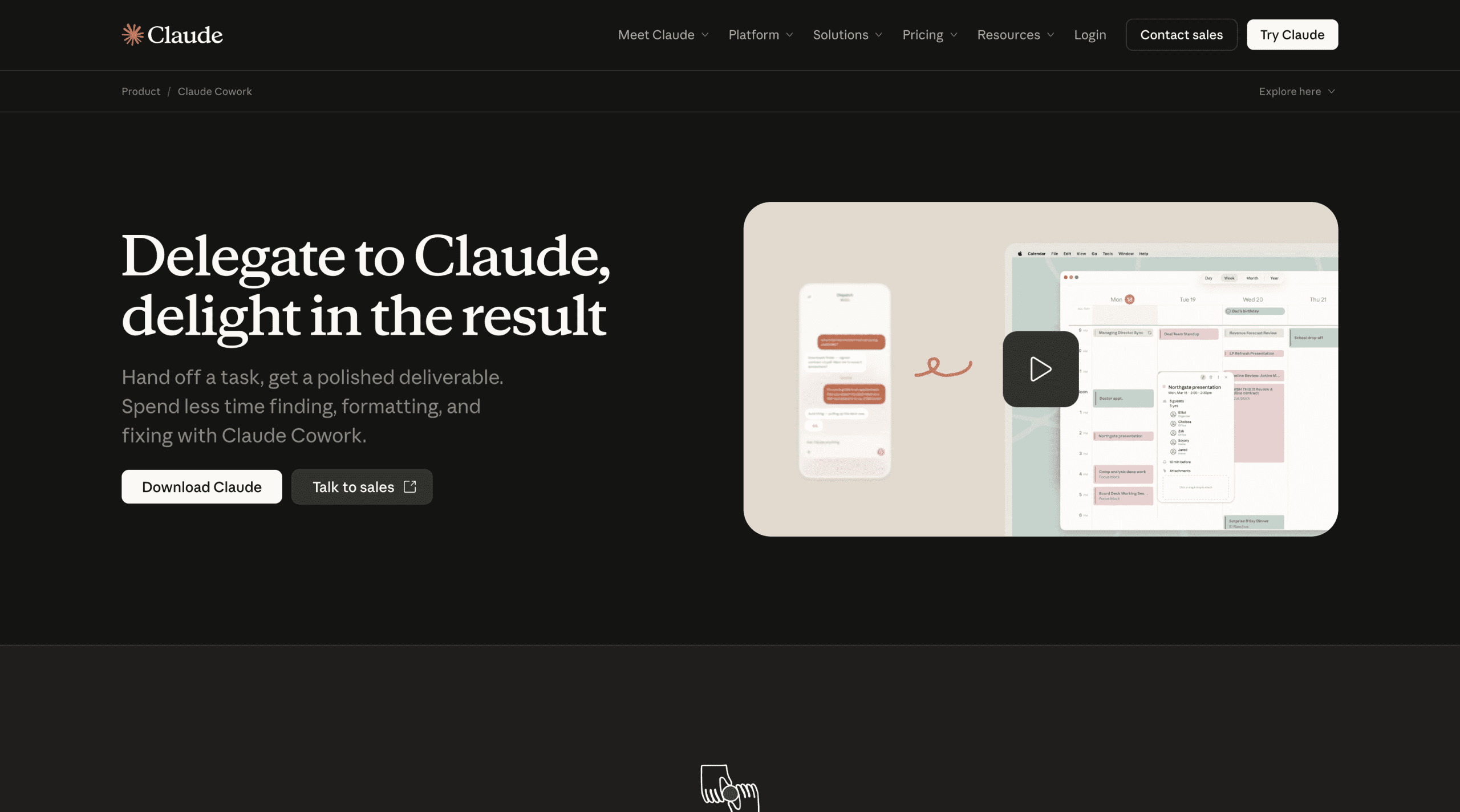
Claude Cowork Desktop interface
# Who Should Care About Cowork
Cowork was built for non-technical knowledge workers. The ideal user is not a programmer. It is a project manager, consultant, researcher, content lead, or finance analyst — anyone whose role generates a constant flow of documents and whose daily routine involves converting raw inputs into polished outputs.
If your work regularly involves tasks like extracting data from spreadsheets to draft reports, tidying up disorganized folders, consolidating meeting notes into a single clean document, or assembling slide decks from scattered materials, that is precisely the kind of work Cowork was designed to handle. You describe what you need. Claude maps out the work, splits it into subtasks, carries them out, and delivers completed files directly to your folder. You can step away while it runs.
There are important limitations to understand before diving in, though. Scheduled Cowork tasks only execute while your computer is powered on and Claude Desktop is running. If your machine is asleep or shut down during a scheduled run, the task is skipped and automatically triggers when you reopen the app. If you need cloud-based task execution while your laptop is closed, that capability belongs to Claude Code, not Cowork.
# Installation and Setup Guide
// Verifying Your Subscription
Cowork is exclusive to paid Claude plans. It is included with Pro ($20/month), Max ($100–$200/month), Team ($30/user/month), and Enterprise. It is not available on the free plan. If you are on Pro, be aware that Cowork tasks demand more computing power than standard chat, so complex jobs will deplete your usage allowance faster. Grouping related tasks into single sessions helps conserve your quota.
// Installing Claude Desktop
Visit claude.com/download and grab the version for your operating system. Cowork requires macOS with Apple Silicon (M1 chip or later) or a compatible Windows machine. If you are on Windows and want to verify compatibility before installing, Anthropic offers a readiness check tool — a small utility that runs on your system and confirms whether your computer supports Cowork. Once downloaded, install and launch the app.
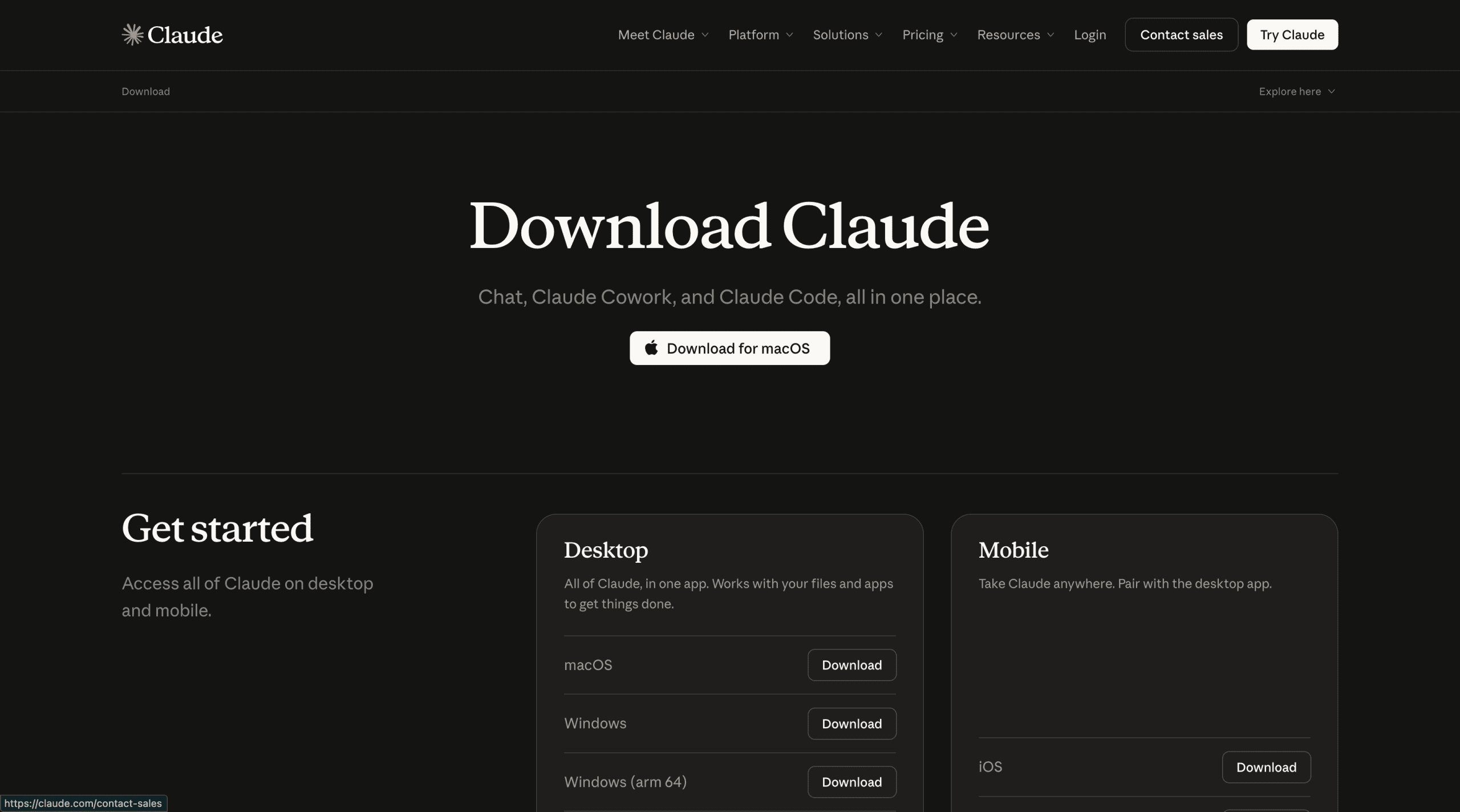
The Claude download page showing macOS and Windows options side by side
// Locating the Cowork Tab
Once inside Claude Desktop, you will see several tabs along the sidebar: Chat, Artifacts, Cowork, and Code. Select Cowork. This switches you into task mode.
// Linking a Folder
At the bottom of the Cowork screen, click “Work in a Folder.” Choose a local folder from your machine. This defines the boundary of Claude’s file access — it can only read and write within the folder you designate here.
Note: avoid starting with your active project directory. Set up a test folder, place copies of real files you want to work with inside it, and run your initial tasks there. This lets you get comfortable with how Cowork interacts with your files before giving it access to anything important.
// Configuring Your Global Instructions
This step is optional but recommended before your first real task. Navigate to Settings > General > Instructions for Claude. Write a brief paragraph telling Claude who you are, how you prefer outputs structured, and what tone to adopt. For example:
“I am a content strategist at a B2B SaaS company. Always format documents with an executive summary at the top, use clear section headers, and write in a concise professional tone. Default output format is Word (.docx) unless I specify otherwise.”
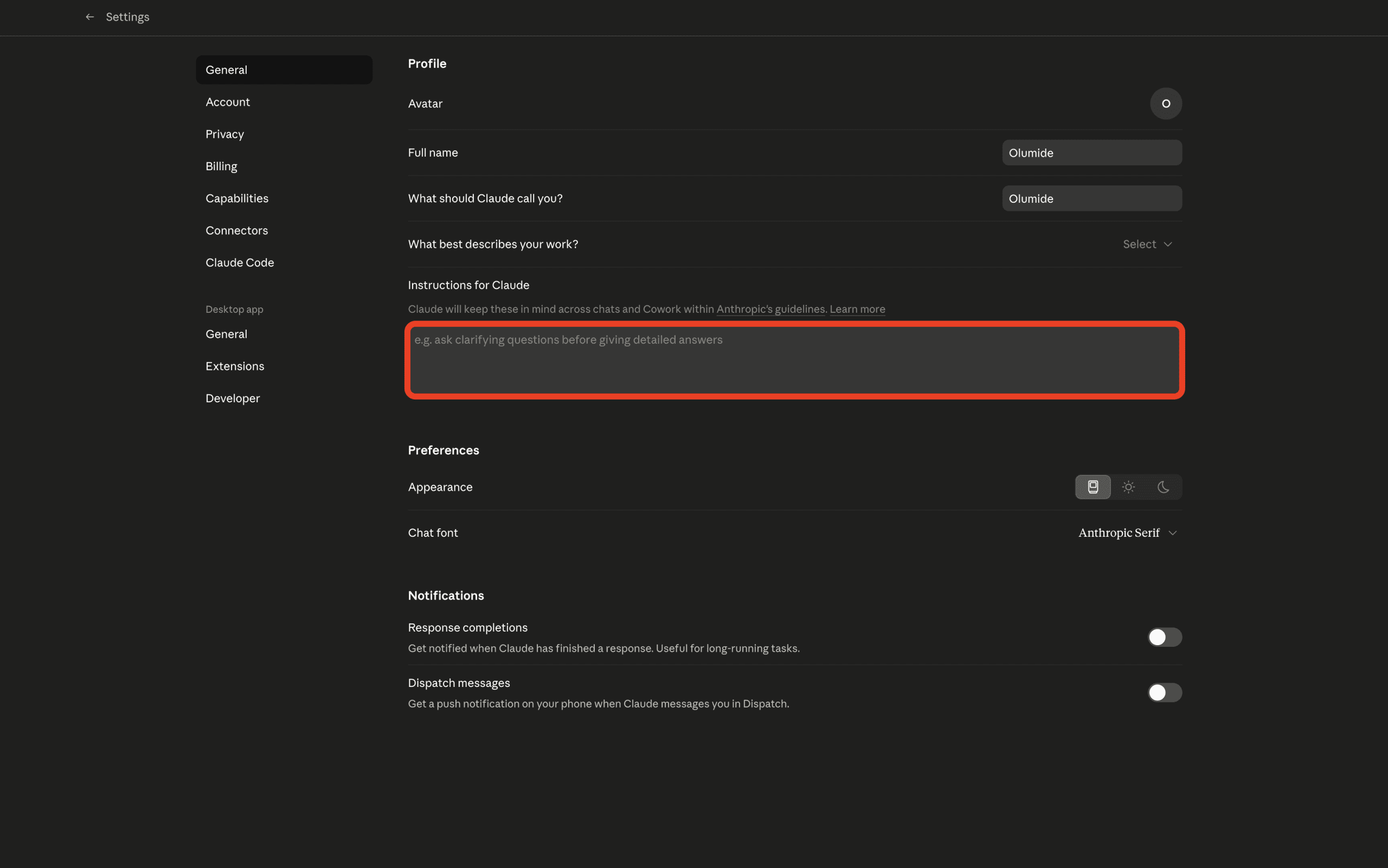
Instructions for Claude settings
These instructions apply automatically to every Cowork session. You can also create folder-specific instructions that activate only when working within a particular folder — handy if you maintain separate folders for client work, internal projects, and personal files, each with different formatting standards.
// Integrating Your Tools
Go to Settings > Connectors. This is where Cowork becomes significantly more capable. Available connectors include Gmail, Google Calendar, Notion, Slack, Microsoft 365 (including Outlook, SharePoint, and OneDrive), and GitHub, among 38+ others. Once linked, your Cowork tasks are no longer confined to local files. Claude can pull data from your inbox, check your calendar, read Notion pages, and push outputs to the tools your workflow already
operates on.
You don’t have to link every tool right away. Begin with just one or two that you use regularly. Even connecting only your calendar and email gives you access to the morning briefing workflow described in the next section.
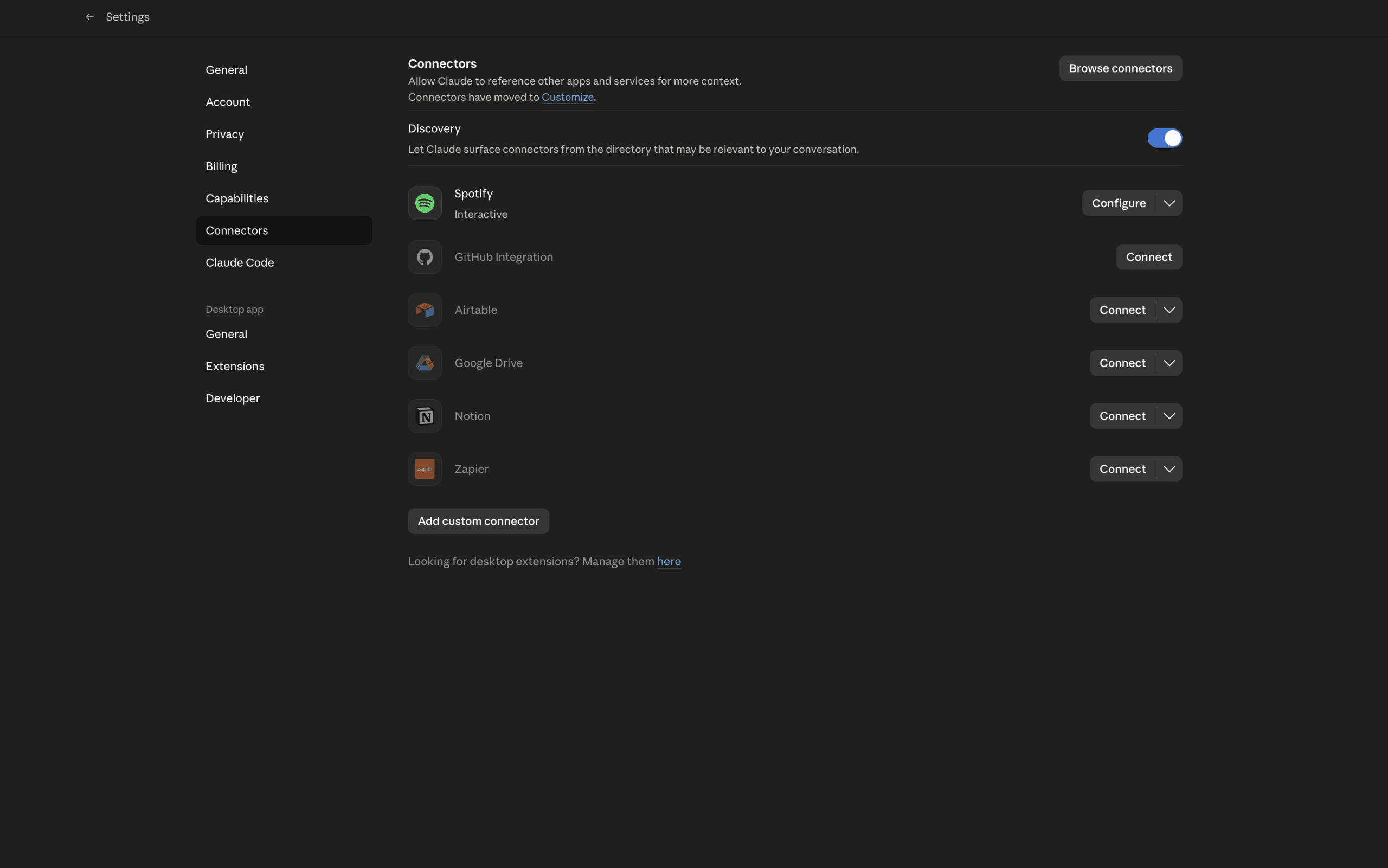
The Connectors panel within Claude Desktop Settings, displaying a grid of available integrations
# Maximizing Claude Cowork
// Focus on Describing the End Result, Not the Steps
The biggest mistake people make when starting with Cowork is crafting prompts the way they would for a regular chat — listing every step and walking the model through each action. That’s unnecessary with Cowork. What it really needs is a clear picture of the final output, not a roadmap for getting there.
Here’s how that looks in practice:
Avoid this approach:
“Open the sales report. Locate the revenue column. Total the numbers by quarter. Then compose a paragraph that summarizes the trend. Place it in a new document.”
Try this instead:
“Review the Q1 sales report in this folder and generate a Word document containing an executive summary, quarterly revenue figures presented in a table, and a brief section highlighting the most significant trends.”
The revised version tells Claude what the finished product should look like — it handles the how on its own. It also helps to plan with Claude before it starts working. For complicated tasks, ask it to outline its proposed approach and confirm your files are properly formatted. Go over the plan, adjust it if necessary, then let it execute. This saves you from running tasks that could have been structured better from the start.
// Leverage Global Instructions to Avoid Redundancy
If you keep adding the same background details to every prompt — your role, preferred output format, your company’s naming standards — that’s a sign you should move those details into Global Instructions. Write them once, and they’ll apply to every session automatically.
Here are some examples of what fits well in a Global Instructions block:
- For a project manager:
“I oversee software delivery at a mid-size tech company. When generating reports, always place a status summary at the top (On Track / At Risk / Blocked), list action items as bullet points, and highlight any upcoming deadlines. Use .docx for documents and .xlsx for data outputs by default.”
- For a content writer:
“I’m a content writer who creates B2B blog posts and in-depth guides. My tone is straightforward and conversational — avoid jargon, keep paragraphs short, and skip passive voice. Output everything in Markdown unless I request a different format.”
- For a finance professional:
“I work in financial analysis. When handling data, always add a summary row, highlight outliers in red, and format numbers with commas and two decimal places. Default output format for data is .xlsx.”
// Automate Tasks That Repeat Weekly
To set up a recurring task, type /schedule in any Cowork session. Alternatively, click “Scheduled” in the left sidebar to view, create, and manage your scheduled tasks. Choose a frequency — daily, weekly, every Monday morning — and Cowork will run the task automatically at the designated time. One important note: your computer must be powered on and Claude Desktop must be running when the scheduled time arrives. If not, the task will queue and execute the next time you open the app.
Here are three scheduled tasks worth configuring right away, along with the exact prompts to use:
- Morning briefing (runs daily at 8:00 AM — requires Gmail and Google Calendar connectors):
“Pull up today’s meetings from my Google Calendar and check my Gmail for any unread emails from the past 12 hours. Compose a morning brief divided into three sections: today’s schedule, emails requiring a response today, and my top three priorities. Save it as morning-brief-[today’s date].txt in my Briefings folder.”
- Weekly folder cleanup (runs every Friday at 5:00 PM):
“Go through my Desktop and Downloads folders. List every file older than 7 days, organized by type: screenshots, PDFs, documents, images, and other. For each category, suggest whether to archive, delete, or keep it. Save the list as a checklist in my Cleanup folder.”
- Weekly expense processing (runs every Monday at 9:00 AM):
“Process all receipt images in my /Receipts folder from the last 7 days. Pull out the vendor name, date, amount, and category from each one. Build a categorized spreadsheet with a total row at the bottom and save it as weekly-expenses-[date range].xlsx.”
// Supply Plenty of Context
The richer the context you give Claude, the stronger the results. This goes beyond just linking tools. Before delegating a complex task, ask Claude what strategy it recommends and whether your files are in the best format. Collaborate on the plan, offer feedback, and steer it toward your desired outcome before any action is taken.
For ongoing work, maintain a context file inside your Cowork folder — a plain text or Markdown file that outlines the project, the stakeholders involved, formatting standards, and any decisions already made. Reference it in your prompts like this:
“Refer to the context file in this folder for project background. Then draft a project status update based on the notes in /meeting-notes.”
That single habit — keeping a context file up to date — bridges most of the quality gap between a rough first run and a polished final output.
# Prompts That Deliver Real Results in Cowork
These are ready to copy, paste, and tailor to your needs. Each one is written as an outcome prompt — it tells Cowork what to produce, not how to produce it.
- Document creation
“I have three sets of meeting notes in this folder from our Q2 planning sessions. Combine them into a single strategy document with the following sections: key decisions made, open questions still unresolved, action items with assigned owners, and next steps. Format it as a Word document.”
“Read the research papers in this folder and compose a 600-word summary covering the main findings, the key disagreements among authors, and the practical implications. Save it as research-summary.docx.”
- File organization
“Sort all files in this folder by year and month according to their creation date. Create subfolders in the YYYY-MM format and move each file into the appropriate one. Don’t delete anything.”
“Review the documents in this folder and rename each one following this pattern: [YYYY-MM-DD]-[topic]-[document-type]. Use the document contents to determine the topic and type.”
- Data and reporting
“Examine the spreadsheet in this folder. Identify the top 10 rows by revenue, calculate the month-over-month change for each, and generate a summary report in Word that includes a table and three bullet points explaining what the data reveals.”
“Process the CSV file located in this folder. Remove any duplicate entries, correct inconsistent formatting in the date column, and save the updated version as a new file, appending ‘-cleaned’ to the original filename.”
“Review all the articles saved as PDFs in this folder. Pinpoint the three most frequently discussed themes, determine where the sources align and where they conflict, and compose a 400-word synthesis. Reference the specific document each point is drawn from.”
“Using the project brief and the data export in this folder, build a PowerPoint presentation structured as follows: Overview (1 slide), Key Findings (2–3 slides), Recommendations (1 slide), Next Steps (1 slide). Limit each slide to a single core idea. Back up the findings slides with the available data.”
“Every Monday at 8:30 AM, review my Google Calendar for the upcoming week. For each meeting that includes an attached document or has a title indicating preparation is required, generate a concise prep note covering the meeting context, what I likely need to know, and two questions I should be ready to address. Save all notes together as a single file in my /Meeting-Prep folder.”
# Conclusion
Cowork fundamentally shifts how you work with AI — moving from a back-and-forth conversation to true task delegation. The chat-based version of Claude helps you work faster on your own tasks. Cowork, on the other hand, takes ownership of the work — initiating, executing, completing, and delivering the finished result directly to your folder. For anyone whose job involves producing a heavy volume of documents with limited time, that distinction is significant.
The barrier to getting started is lower than it might seem. Download Claude Desktop, connect a single folder, and try one task from the prompts above. That first experience — watching Claude outline the work, carry out the steps, and place a completed file into your folder — is typically the moment it all makes sense. Begin there, then expand by setting up your Global Instructions and your first scheduled automation once you have witnessed its capabilities firsthand.
Shittu Olumide is a software engineer and technical writer passionate about leveraging cutting-edge technologies to craft compelling narratives, with a keen eye for detail and a knack for simplifying complex concepts. You can also find Shittu on Twitter.
