



# Introduction
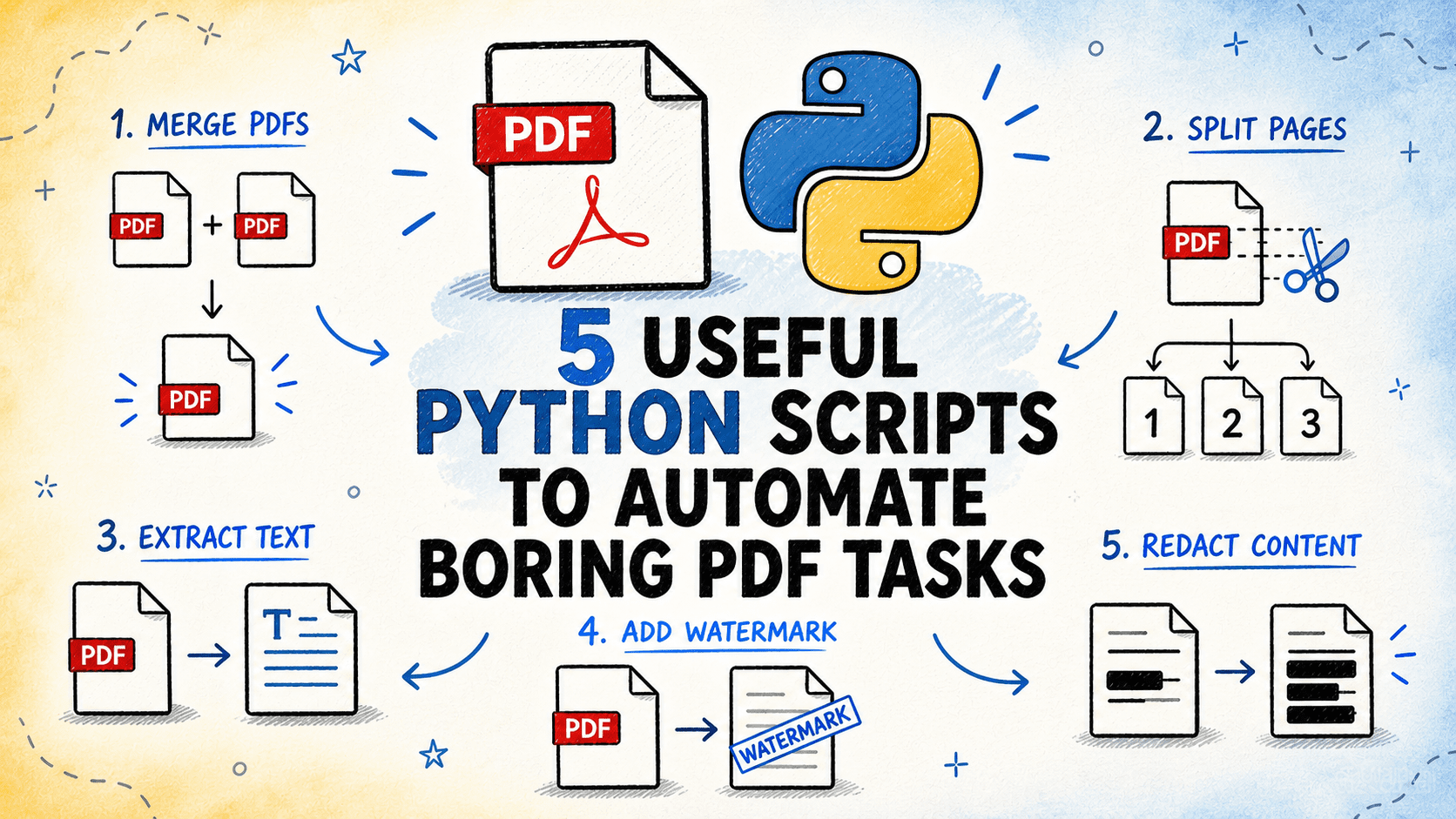
PDFs show up in all sorts of workflows. Maybe you need to combine several reports, break a large document into smaller pieces, pull out text or tables, apply watermarks, or strip out confidential information. These are everyday tasks, but doing them by hand across dozens of files is time-consuming and prone to mistakes. These five Python scripts take care of that for you. They’re command-line tools, support batch processing, and are simple to set up.
All the scripts are available on GitHub.
# 1. Merging and Splitting PDF Files
// The Pain Point
Stitching several PDFs together into one file, or carving a big PDF into smaller chunks by page range, are among the most frequent PDF chores. Both are painfully slow to do by hand, especially when you’re dealing with lots of files or documents with many pages.
// What the Script Does
Combines all PDFs in a folder into a single output file in whatever order you choose, or carves up a single PDF into separate files based on fixed page intervals, every N pages, or a custom list of page numbers. A single mode flag lets you switch between merging and splitting.
// How It Works
The script relies on pypdf for all page-level work. In merge mode, it reads every PDF from an input folder, sorts them by filename (or follows a custom order from a text file), and writes them one after another into a single output PDF. In split mode, it takes a page range list, a fixed chunk size, or specific page numbers to split on. Each resulting segment gets saved as a numbered output file. In merge mode, metadata from the first input file is carried over.
⏩ Get the PDF merge & split script
# 2. Extracting Text and Tables from PDFs
// The Pain Point
Pulling usable data out of a PDF — whether it’s body text from a report or structured tables from a financial statement — is a prerequisite for any downstream work. Copy-pasting from a PDF viewer doesn’t scale past a few pages, and the results are almost never clean.
// What the Script Does
Pulls text and tables from one or more PDFs and saves them in structured output formats. Text goes into plain text or markdown files. Tables are exported to CSV or Excel, with each table on its own sheet. Works with both text-based PDFs and extraction that preserves the original layout.
// How It Works
The script uses pypdf for straightforward text extraction and pdfplumber for layout-aware extraction and table detection. It processes each file page by page, pulling out text blocks and identifying table regions with pdfplumber’s table finder. Extracted tables are cleaned up — blank rows stripped out, headers identified — and saved to separate output files. A summary report shows how many pages and tables were found per file, and flags any pages where nothing was extracted.
⏩ Get the PDF text & table extractor script
# 3. Stamping, Watermarking, and Adding Page Numbers
// The Pain Point
Slapping a watermark, a stamp, or page numbers onto a batch of PDFs before sending them out sounds simple, but doing it one file at a time through a GUI is painfully slow. When you’re dealing with a large batch or a recurring need, automation is the way to go.
// What the Script Does
Applies a text or image stamp to every page across one or more PDFs. Handles diagonal watermarks, header and footer text, page numbers, and image overlays. You can customize position, font size, opacity, and color. Entire folders are processed in batch.
// How It Works
The script uses pypdf for page manipulation and reportlab to build the stamp layer. For each input PDF, it generates a single-page stamp PDF in memory using reportlab. It renders text at the specified position, angle, font, and opacity, or places an image at the given coordinates. That stamp page is then overlaid onto every page of the source PDF using pypdf’s page merging. The output is saved as a new file, leaving the original untouched. Page numbers are treated as a special case, with a unique stamp generated for each page.
⏩ Get the PDF marker script
# 4. Redacting Sensitive Content
// The Pain Point
Before sending a PDF to an outside party, you often need to strip out sensitive details — names, reference numbers, financial data, and addresses. Drawing black boxes over text in a PDF editor might look right, but it doesn’t always remove the underlying text, and it’s not realistic for more than a few pages.
// What the Script Does
Scans PDF pages for text that matches patterns you define — regex patterns, exact strings, or built-in categories like email addresses and phone numbers — and permanently redacts the matches by covering them with black rectangles. Produces a new PDF where the underlying text is truly gone, not just hidden from view.
// How It Works
The script uses pymupdf, which offers both text search with bounding box coordinates and the ability to create redaction annotations that permanently erase the underlying content when applied. For each page, the script finds all matches for every configured pattern, marks the bounding rectangles as redaction annotations, and then applies them — stripping the text from the page content stream. A report is generated listing every redaction, including the page number, the matched text (before redaction), and the pattern that triggered it.
⏩ Get the PDF redaction script
# 5. Extracting Metadata and Generating a PDF Inventory
// The Pain Point
When you’re managing a large library of PDFs, it helps to know basic details about each one — page count, file size, creation date, author, whether it’s encrypted, and whether it contains searchable text or is just scanned images. Opening each file individually in a viewer to check these things doesn’t scale.
// What the Script Does
Scans a folder of PDFs and pulls metadata from each one, including page count, file size, creation and modification dates, author, producer, encryption status, and whether the document contains searchable text or scanned images. Everything gets written to a single CSV or Excel inventory file.
// How It Works
The script uses pypdf to read document metadata from the PDF info dictionary and pdfplumber to sample pages for text content. For each file, it opens the PDF and reads the standard metadata fields. It checks the first few pages to determine whether the file has extractable text versus scanned image pages. Encrypted files that can’t be opened are flagged instead of being silently skipped. The output inventory has one row per file with all extracted fields, plus a summary row at the bottom with totals and averages.
⏩ Get the PDF inventory script
# Wrapping Up
These five Python scripts tackle the PDF tasks that usually devolve into tedious manual labor: splitting files, pulling out content, processing batches, and streamlining document workflows. Each script is built to work safely on individual files or whole folders, always generating new outputs rather than altering the originals.
Start with a small batch, double-check the results, then scale up to larger folders once you’re confident everything looks good. For most of the setup, you just need to install the listed dependencies and tweak the config section with your file paths and preferences.
Bala Priya C is a developer and technical writer from India. She loves working where math, programming, data science, and content creation meet. Her interests and areas of expertise include DevOps, data science, and natural language processing. She’s passionate about reading, writing, coding, and coffee! Right now, she’s focused on learning and sharing her knowledge with the developer community through tutorials, how-to guides, opinion pieces, and more. Bala also puts together engaging resource overviews and coding tutorials.
