



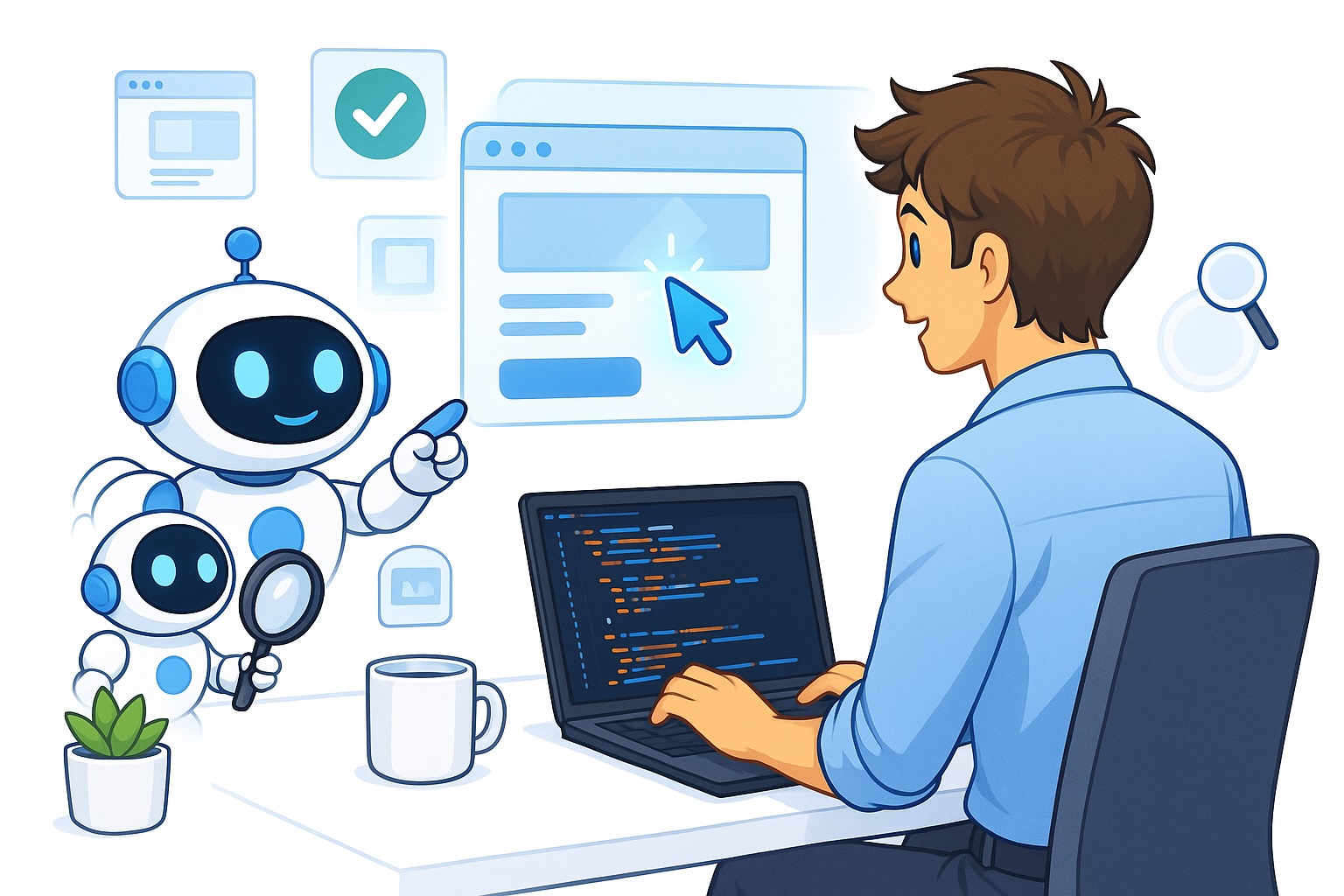
A common misconception about coding agents is that they’re limited to programming tasks alone. In reality, they’re far more versatile and can handle virtually any office-related task, though their effectiveness varies from one task to another.
That said, one particularly popular application that’s drawn significant attention is using coding agents to browse the web — tools like Claude Code and OpenAI’s Codex have become standout examples.
These agents have grown remarkably skilled at navigating websites, which opens up a wide range of practical applications.
Web browsing can, of course, be useful in many different situations, such as fetching information on the Internet or filling in forms for you. However, it’s worth noting that some of the use cases can break the terms of service, so you should definitely be aware of this. The main usage area I’ll cover today is definitely fully legal, and it covers navigating applications you’re developing yourself with the coding agents to test and verify implementations.
I’ve discussed at length in previous articles about the importance of creating verifiable tasks whenever you delegate work to a coding agent. Giving the agent access to your browser so it can test its own implementations is a critical piece of that verifiability puzzle.
Why coding agents should use your browser
Let’s start by exploring why you’d want your coding agent to control a browser in the first place. Browsers serve as one of the primary ways people interact with the digital world — they let you look up information, complete applications, submit forms, and much more.
Because browsers are such a central interface for human-computer interaction, a tremendous amount of research and development has gone into enabling AI agents to navigate them effectively. There are entire companies dedicated to browser automation, and all the leading AI labs — including OpenAI with its Codex product and Anthropic with Claude Code — offer built-in browser navigation capabilities.
Consider this scenario: you ask a coding agent to implement a design based on an HTML mockup. Naturally, the agent is capable of writing front-end code and can begin implementing it right away. But without the ability to open a browser, the agent has no way to check whether its output actually matches the design.
This dramatically raises the likelihood that the agent will introduce subtle errors or deviate from the intended design without realizing it.
Fortunately, there’s a straightforward solution: simply grant your coding agent access to a browser. Let it take screenshots of what it has built and compare them against the original design mockup. The agent can then keep refining its code until the visual output perfectly matches the target design.
As a developer, this saves you enormous amounts of time because you no longer need to manually inspect the agent’s work and point out every discrepancy. Instead, you can focus on higher-level tasks, making you significantly more productive overall.
How it works
Before diving into the specifics of browser navigation with Claude Code, let me walk you through the underlying mechanics.
In principle, the process is quite straightforward. The coding agent opens a browser and has access to a small set of core actions:
- Take a screenshot
- Click (using coordinates)
- Type text
These three fundamental actions cover essentially everything you need to interact with a web page:
- Screenshots are essential because they’re how the agent perceives what’s on each page and determines where to click next.
- The agent also needs the ability to click various elements on a page — buttons, input fields, links, and so on.
Clicking works on a coordinate-based system.
So when the agent wants to click a specific spot on the page, it outputs a command like this:
click(x=0.754, y=0.328)It essentially calls the click function and provides the target coordinates. These coordinates are typically normalized to fall within a standard range, such as 0 to 1.
After clicking a particular location, the agent can type text to interact with whatever field or element it has selected. Of course, the agent can also perform other types of clicks — for instance, a right-click to open a context menu with additional options.
The process then repeats in a loop. The agent captures a screenshot, decides on its next action, checks whether it has accomplished its goal, and if not, repeats the cycle. It takes another screenshot, picks another action, evaluates the result, and continues iterating until the task is complete.
How to navigate browsers with Claude Code
Now let’s get into the practical steps for setting up browser navigation with Claude Code. The principles I’ll outline here are broadly applicable to any coding agent, not just Claude Code — I’m deliberately avoiding techniques that can’t easily be generalized to other tools.
First, if you’re using Claude Code, it comes with a built-in Chrome integration that you can activate simply by entering the following command while inside the Claude Code interface:
/chromeOpenAI’s Codex offers a comparable command as well.
This straightforwardly gives Claude the ability to open Chrome on your machine and use it to verify its work.
In my experience, the Chrome integration in Claude works reasonably well, but it’s not ideal.
I’ve found a better approach is to use the Playwright MCP, which you can install in Claude Code simply by asking Claude to set it up:
Install the Playwright MCP to interact with the browserOnce Claude has completed the installation, you’ll need to restart Claude Code, and the Playwright MCP will be available. In my experience, Claude is more effective at completing
tasks if it relies on the Playwright MCP rather than engaging with the /chrome functionality already built into the baseline Claude Code setup.
Naturally, if you’re working with any other coding agent, you can follow the same approach: instruct it to set up the Playwright MCP. The agent will handle the installation, and once you restart it, it will have full access to Playwright.
How to Get Your Agent to Test Your Implementation
Now that you’ve set up the Playwright MCP and granted your agent the ability to interact with the browser, you can leverage it to test your implementations.
Whenever your agent completes a task — say, building a new design based on a design file — simply ask it to perform a full end-to-end verification by walking through the result in Chrome using the Playwright MCP and confirming that everything works as expected.
It’s also a good idea to instruct the agent not to pause and check in with you before it has fully verified its work from start to finish. In this context, end-to-end verification means actually interacting with the browser to confirm that things function correctly.
I also frequently use the /goal feature, which is supported in both Codex and Claude Code. This feature essentially lets the agent keep working on a task until it’s fully completed. I typically write something like:
/goal keep working on the task, implementing  until you've
fully implemented it and tested and verified it end to end by interacting
with the browser using the playwright MCP, taking screenshots, and
verifying your work, only come back to me once you've both implemented
and fully tested the implementation successfully.
This pushes the agent to keep progressing toward the goal and validating its work, and it won’t return to you until everything has been verified. This approach has saved me a tremendous amount of time, and it’s particularly valuable when you want the agent to focus solely on implementing designs.
Conclusion
In this article, I walked you through how to use Claude Code to verify your work directly in the browser. I started by explaining why coding agents can and should be able to interact with your browser. Then I broke down how browser navigation actually works with coding agents, which turns out to be a fairly straightforward concept. Finally, I dove into the specifics of how you can navigate browsers using Claude Code or other coding agents.
I believe browser navigation will continue to be important, since so much of how people interact with the world happens through a browser. That said, it’s worth keeping in mind that coding agents are still significantly more effective when working with APIs and MCPs, so whenever you can interact with a service through those channels instead, that’s generally the better route.
Also, check out How to Effectively Run Many Claude Code Agents in Parallel.
👋 Get in Touch
👉 My free eBook and Webinar:
🚀 10x Your Engineering with LLMs (Free 3-Day Email Course)
📚 Get my free Vision Language Models ebook
💻 My webinar on Vision Language Models
👉 Find me on socials:
💌 Substack
🐦 X / Twitter
