



**Keep Your Home Network Online During Outages: Use an Android Phone as a Backup Internet Source**
Severe weather can disrupt power and phone lines, causing major issues for both people and infrastructure. As temperatures hit record highs in the UK, concerns about safety extend to home internet connectivity as well. Power outages and damaged lines can leave you without internet for extended periods, impacting work, communication, and access to essential services.
Many people rely on mobile hotspots as a backup, but constantly switching devices to a new Wi-Fi network is inconvenient and disrupts connected gadgets. If your router fails, you don’t have to lose connectivity—there are practical ways to keep your network online using an Android phone.
According to **ZDNET**, here are the best methods to maintain internet access during an outage without changing Wi-Fi settings on every device.
—
### **Why a Backup Internet Plan Matters**
When the power goes out, you need a reliable way to keep your router online. While services like SpaceX Starlink provide excellent backup internet, you may still want a solution that integrates seamlessly with your existing router. The goal is to keep all your connected devices online without manual reconfiguration.
—
### **Three Reliable Methods to Keep Your Network Running**
#### **Option 1: USB Tethering**
If your router has a USB port, you can connect an Android phone directly using a USB-C to USB-A cable. Once connected, enable USB tethering in your phone’s settings. Many routers automatically detect this as a valid internet source.
– **Pros:** Simple, widely supported, no extra configuration needed.
– **Cons:** Not all budget routers or ISP-provided routers support this feature.
*For advanced functionality, consider installing third-party firmware like OpenWrt or DD-WRT.*
#### **Option 2: Wi-Fi Hotspot (WWAN Support)**
Some routers support WWAN, allowing them to connect to a phone’s Wi-Fi hotspot while still acting as the main router. This keeps your network stable and avoids changing SSIDs across devices.
– **Pros:** Keeps router as the central network hub.
– **Cons:** Requires a router that explicitly supports WWAN—common in models from GL.iNet, Draytek, and Ubiquiti.
If your router doesn’t support WWAN, installing OpenWrt or DD-WRT may enable the feature.
#### **Option 3: Ethernet Tethering (Best Option)**
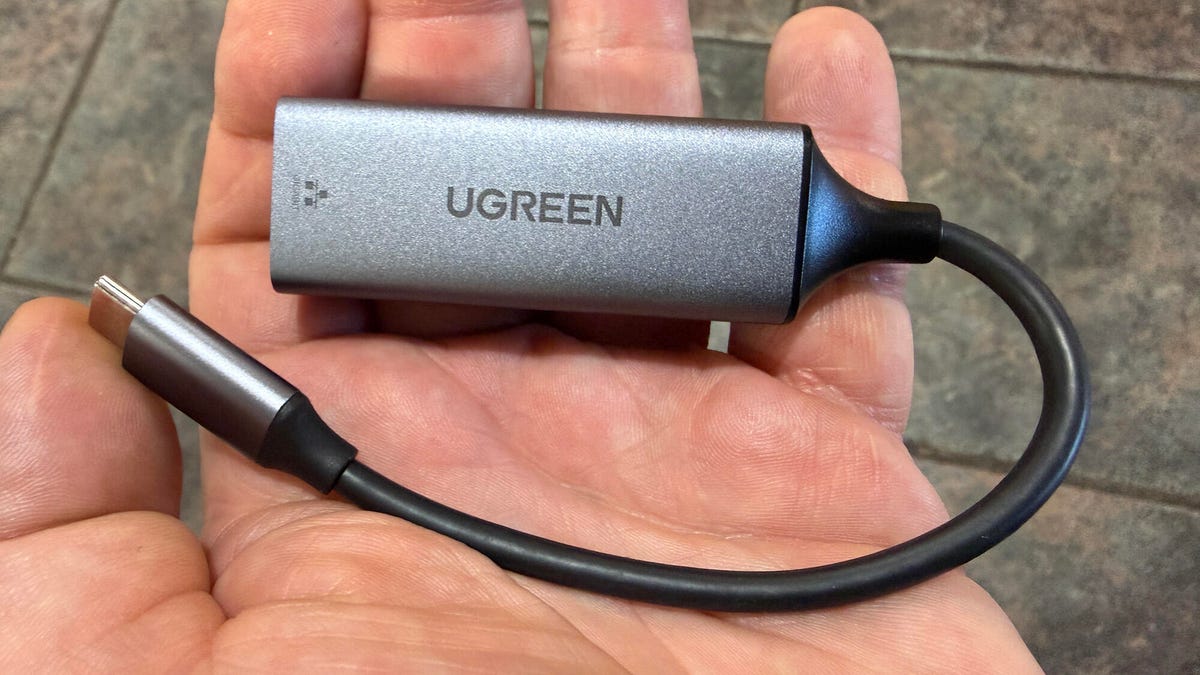
The most reliable and universal method uses a **USB-C to Ethernet adapter** and an Ethernet cable to connect your phone directly to the router’s WAN port.
– **Pros:** Works with nearly every router, easy setup, stable connection.
– **Cons:** Phone won’t charge while tethered (requires a powered hub or scheduled charging).
**Recommended Adapters:** Look for brands like Anker, Ugreen, or Plugable, priced between $10–$20 for best performance. Avoid ultra-cheap adapters, as they may lack proper chipset support.
—
### **Special Considerations for iPhone Users**
– **USB Tethering:** Works only if the router explicitly supports iPhone tethering (check the manual).
– **Wi-Fi Method:** Compatible with WWAN-supported routers.
– **Ethernet Tethering:** Generally not supported.
Router firmware like OpenWrt or DD-WRT can help, but setup is more complex and requires technical comfort.
—
### **Final Recommendations**
An old Android phone with an active data plan can be a lifesaver during internet outages. For most users, **Ethernet tethering via a USB-C adapter** offers the best balance of simplicity, reliability, and compatibility.
Just remember to keep your phone charged—consider using a multi-port hub or scheduling downtime to ensure your backup device remains ready when you need it.
—
**Source:**
Kingsley-Hughes, Adrian. “The best way is to use a USB-C to Ethernet adapter.” *ZDNET*, https://www.zdnet.com/article/keep-your-home-network-online-during-outages-with-an-android-phone/. Accessed 29 May 2025.
