



Follow ZDNET: Add us as a preferred source on Google.
ZDNET’s key takeaways
- Mobile Edge is gaining several AI capabilities from the desktop version.
- You can request summaries of multiple open tabs and your browsing history.
- You can also ask Copilot to generate podcasts and quizzes from a web page.
My default mobile browser on my iPhone is Safari. On my Android phones, it’s Google Chrome. But now there’s another browser competing for the top spot on my mobile devices. And that’s Microsoft Edge. Why? The newest version of mobile Edge integrates AI more deeply, helping collect information and answer questions across multiple tabs all at once.
Before we get into the details, know that I’m certainly not an AI or Copilot enthusiast. I’ve called out Microsoft’s aggressive approach to push Copilot into every corner of its many products and services. And we all know that generative AI itself is imperfect. But when implemented well, AI can be a useful tool. That’s why lately I’ve been relying on Edge on my iPhone and Android phone for certain types of searches.
Also: Why Edge stores your passwords in plaintext, according to Microsoft
Now for the details. As outlined in a new blog post by Edge product VP Sean Lyndersay, Edge for mobile has adopted several AI-powered capabilities previously available only in its desktop counterpart. Plus, there are a few features new to both the mobile and desktop versions.
1. Summarize multiple tabs
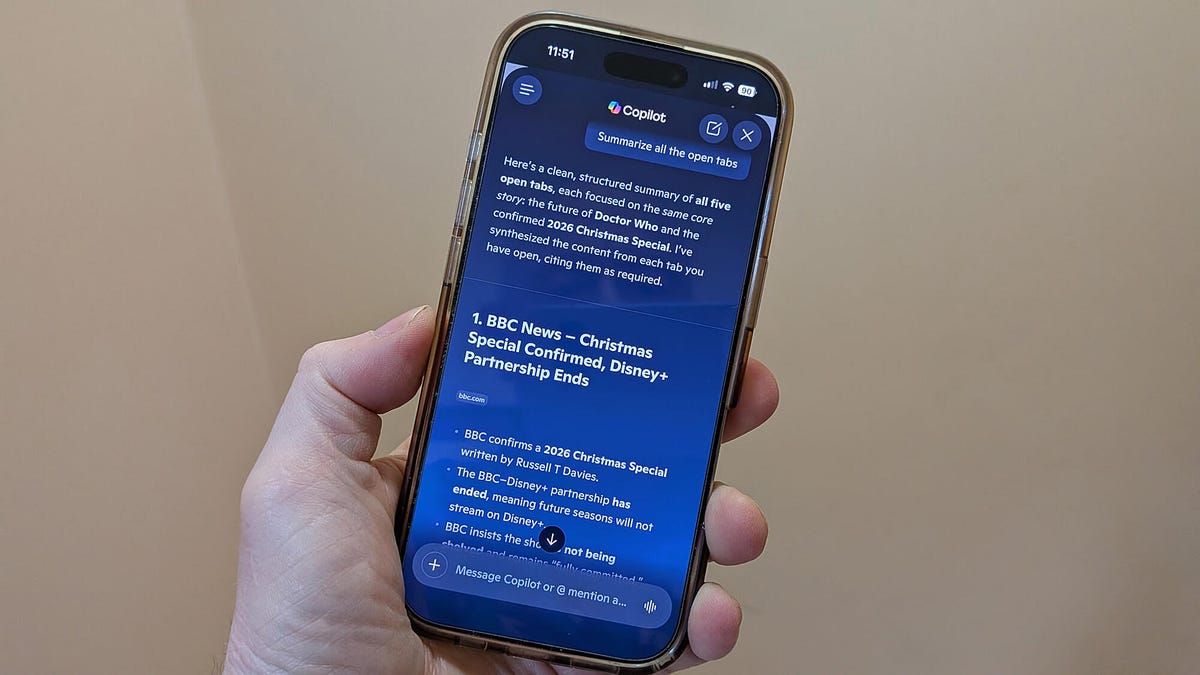
In mobile Edge, you can now ask Copilot to summarize or answer questions about multiple tabs just as you can in the desktop version. That means no more jumping from one tab to another to summarize each one individually.
To try this, first make sure you’ve updated Edge on your Apple or Android device so that you’re running version 148 or higher. Launch the browser. As you research a particular topic, you’ll likely open multiple tabs on it. On the new tab page, tap the Copilot icon at the beginning of the search bar, then type or speak your question or request, such as “Summarize the information in the open tabs.” Copilot examines the content of all the open pages and then produces its response.
2. Revisit past searches
In a feature called Journeys, mobile Edge will now track topics you’ve explored through past searches, just as in the desktop version. The most recent topic appears on the new tab page for easy access so you can resume where you left off.
Also: I let Microsoft Edge’s new AI feature read all my open tabs – and it’s a total research time-saver
To set this up, go to Settings in mobile Edge, then tap the Copilot and AI setting. Choose the option for Copilot New Tab Page and turn on the toggles for Enable Copilot New Tab Page and Enable Journeys. After you’ve run some searches and visited different pages, Edge will eventually convert your browsing journey into summaries that appear on the new tab page. Select a specific journey to continue exploring that topic.
3. Access the new tab page
Like the desktop version, mobile Edge has streamlined the new tab page with more useful content. From the page, you can perform a traditional search or give Copilot a question or request. You’ll see icons for certain web pages so you can revisit them. Tap the Add button to include more pages and even built-in features to the list. You can also remove any icon by pressing down on it and tapping the X. And then there’s the summary of a past website journey.
4. Dive into your browsing history
In one feature new to both the desktop and mobile editions of Edge, Copilot can recall and draw from your browsing history to continue a conversation. Just tell the AI to discuss the topic you were browsing earlier, and it should review your history and reference your past chats to provide updated information.
5. Turn pages into podcasts
Here’s another AI capability in Edge that has expanded from the desktop to mobile. You can now ask Copilot to create a podcast from your current web page or all open tabs. At the Copilot prompt, just type or tell it to create a podcast. Wait a few minutes while the podcast is generated. Once it’s ready, just tap the Listen button to start it. From there, you’re able to pause and skip ahead or go back 10 seconds.
Also: Vivaldi’s new feature should have every other browser taking note
6. Take on an interactive quiz
With the new Study and Learn mode in Edge for desktop and mobile, you can ask Copilot to break down complex topics into study sessions or interactive quizzes. For this one, just open a web page on a challenging subject. At the Copilot prompt, type “Quiz me on this topic.” The AI generates a short multiple-choice quiz to test you.
Several more tricks
There are a few other tricks up Copilot’s sleeve. Edge for desktop and mobile now offers a new AI-powered assistant that can help you if you’re struggling for the right words. Using Copilot Vision, you can now share your current screen on mobile just as on the desktop and then ask the AI questions about the content.
Also: What is digital transformation? Everything you need to know about how technology is changing business
In the past, I never used mobile Edge very much since Safari and Chrome always felt more convenient and accessible. But with these new Copilot capabilities, I’ll be sure to turn to Edge more often, especially when I’m searching for information that could benefit from a helping hand from AI.
