



# How to Safely Sideload Apps on Android: Understanding Google’s New Advanced Flow
Android has long been an open ecosystem that allows users to install applications from sources outside of the official Google Play Store. This process, known as sideloading, gives users access to a wider range of apps and tools. However, with that freedom comes significant security risks — which is why Google has periodically altered how sideloading works on the platform.
In a recent development, Google has reintroduced sideloading capabilities with a new safeguard called **Advanced Flow**. This one-time setup process is designed specifically for power users who want to install apps from unverified developers while minimizing the risk of falling victim to malicious software or scam tactics.
## Why Google Restricts Sideloading
The concern behind sideloading is legitimate. APK files downloaded from unverified websites can contain malware, spyware, or other harmful payloads that compromise your personal data and device integrity. Scammers have also been known to use social engineering tactics — such as threatening financial ruin or legal consequences — to pressure users into installing dangerous apps. Google’s Advanced Flow was built with these threats in mind.
## What Is Advanced Flow?
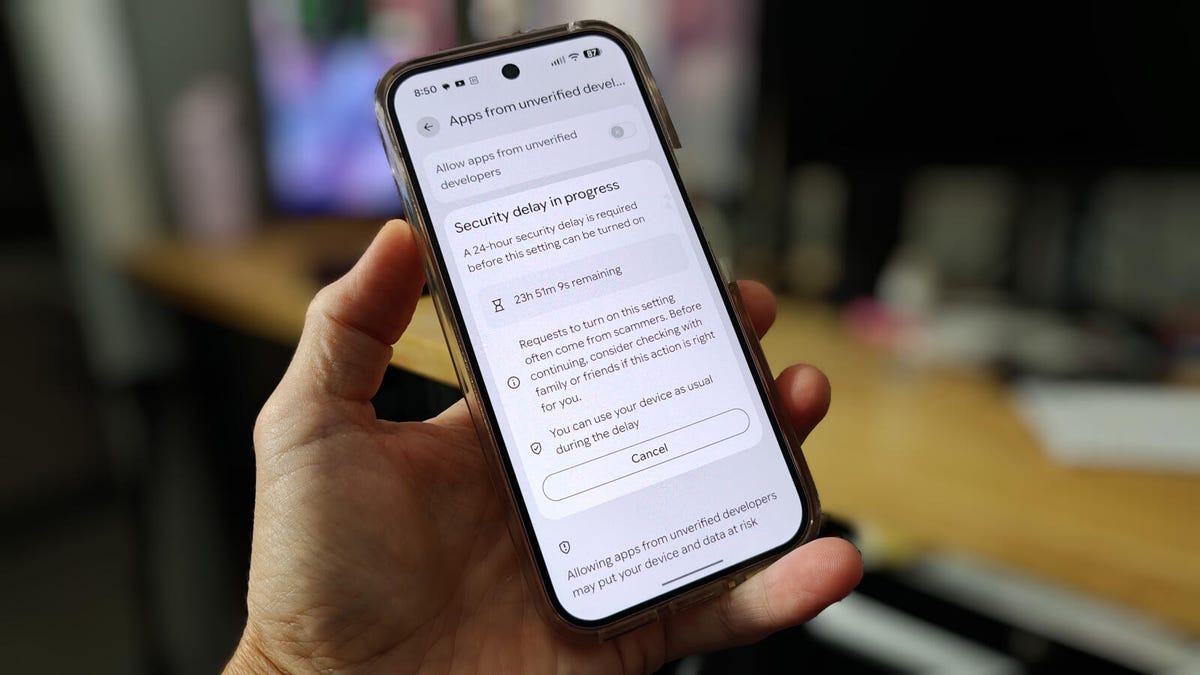
Advanced Flow is a one-time configuration process that Google introduced to give power users greater control over app installation while building in layers of protection. It requires users to confirm their identity, acknowledge that no one is pressuring them to sideload apps, and wait a full 24 hours before the setting becomes active. This waiting period is intentionally designed to prevent impulsive decisions that could leave a device vulnerable.
## Step-by-Step Guide to Setting Up Sideloading
### Step 1: Enable Developer Options
Navigate to **Settings > About phone > Software information** and tap on **Build number** seven times. This will unlock the Developer Options menu hidden within your Android settings.
### Step 2: Access Developer Options
Once enabled, go to **Settings > System > Developer options** to access the menu. Here, you will find a variety of advanced features meant for experienced users.
### Step 3: Turn On Unverified Developer Apps
Within Developer Options, locate the **Apps from unverified developers** section. Toggle the **Allow apps from unverified developers** setting to On. Your device will then prompt you to authenticate using your configured screen lock method (PIN, pattern, or biometric).
### Step 4: Confirm You Are Not Being Coerced
A critical part of the Advanced Flow process is a prompt that asks whether anyone has asked you to enable this setting. You must select **No one asked me** to proceed. If someone has pressured you into doing this, the prompt encourages you to reconsider — a helpful reminder of the risks involved.
### Step 5: Restart and Wait 24 Hours
After confirming your choice, you will need to restart your device. You can either restart immediately or schedule it for later. Once the reboot is complete, the setting remains inactive for a full 24-hour waiting period.
### Step 6: Activate Sideloading
After 24 hours, return to **Settings > Developer options > Apps from unverified developers** and choose whether you want to allow installations for **seven days** or **indefinitely**. If you select the seven-day option, you will not need to repeat the entire waiting period when you want to re-enable sideloading in the future.
## How to Sideload an App Once the Setting Is Enabled
With Advanced Flow complete, you can now install apps from APK files. Here’s how:
1. **Download a reputable APK file** — Use trusted sources like APKMirror, F-Droid, or Uptodown. Avoid downloading APKs from unfamiliar websites.
2. **Disable Advanced Protection** — If your device has Google’s Advanced Protection enabled, you’ll need to temporarily turn it off before installing an APK. Go to Settings and search for Advanced Protection to disable it.
3. **Install the APK** — Open your Files app, navigate to Downloads, and tap on the APK file. Follow the on-screen prompts to complete the installation.
4. **Re-enable Advanced Protection** — Once installation is complete, go back to Settings and turn Advanced Protection back on to restore your device’s maximum security.
## Important Safety Tips
Even with Advanced Flow in place, caution is essential when sideloading apps. Here are a few guidelines to keep in mind:
– **Stick to reputable sources.** APKMirror and F-Droid are widely trusted in the Android community. Uptodown is another reliable option for finding pure APK files.
– **Verify the developer.** Before installing any APK, research the developer to confirm they are legitimate and trustworthy.
– **Scan for malware.** Consider using a mobile security app to scan downloaded APK files before installation.
– **Limit the duration.** If possible, choose the seven-day sideloading window rather than enabling it indefinitely. This reduces the window of vulnerability.
– **Re-enable protections.** Always remember to turn Advanced Protection back on after installing your app.
## Frequently Asked Questions
**Q: What exactly is sideloading on Android?**
A: Sideloading refers to the process of installing an app on your Android device from a source other than the Google Play Store, typically by downloading and running an APK file directly.
**Q: Why does Google require a 24-hour waiting period?**
A: The 24-hour delay is a deliberate security measure designed to prevent users from making impulsive decisions under pressure. It gives users time to reflect on whether they are being coerced into sideloading apps by a scammer.
**Q: Can I skip the Advanced Flow process?**
A: No. Advanced Flow is a mandatory one-time process required by Google before sideloading can be enabled. There is no way to bypass it.
**Q: What happens if I choose the seven-day option?**
A: If you select the seven-day window, sideloading will automatically disable after one week. When you want to re-enable it, you will not need to go through the 24-hour waiting period again — you simply toggle the setting back on.
**Q: Is sideloading safe?**
A: Sideloading can be safe if you download APK files from reputable sources and exercise caution. However, installing apps from unverified websites significantly increases your risk of malware infection and data theft.
**Q: Do I need to disable Advanced Protection every time I sideload an app?**
A: Yes, if your device has Advanced Protection enabled, you must temporarily disable it before installing an APK. Be sure to re-enable it immediately after installation.
**Q: What are some trusted APK download sites?**
A: APKMirror, F-Droid, and Uptodown are widely regarded as reputable sources for downloading APK files. Always verify the developer and read reviews before installing anything.
## Conclusion
Google’s reintroduction of sideloading through the Advanced Flow process represents a thoughtful balance between user freedom and security. By adding authentication, coercion detection, and a mandatory waiting period, Google has made it harder for scammers to exploit the sideloading feature while still giving power users the access they need. However, the responsibility ultimately lies with the user to download APKs only from trusted sources and to maintain proper security practices at all times. Sideloading opens up a world of possibilities on Android — but with that freedom comes the need for vigilance.
Thank you for reading
