



Follow ZDNET: Add us as a preferred source on Google.
ZDNET’s key takeaways
- ChatGPT can help with writing, research, images, files, and apps.
- Free users can start fast, but paid plans unlock higher limits.
- Projects, memory, and voice mode make ChatGPT more useful.
This fall marks four years since ChatGPT launched, shifting AI from a novelty people chatted with on phones or smart speakers into a practical tool for debugging code, building presentations, creating images, shopping, and trip planning. Honestly, the term “chatbot” now feels outdated and too narrow for what ChatGPT actually does today.
Also: I stopped using ChatGPT for everything: These AI models beat it
New AI use cases keep emerging, and ChatGPT now competes in a crowded field that includes Anthropic’s Claude and Google’s Gemini. Still, if you’re new to AI, the original is a solid starting point. You can type, speak, upload files, link apps, and let it generate content for you.
How to use ChatGPT (for beginners)
What you’ll need: ChatGPT works on the web, desktop, or through the iOS and Android mobile apps. An account isn’t required, but it’s recommended. Start with a free account, then decide later if a paid plan is worth the upgrade.
You can access ChatGPT through a browser at chatgpt.com or via the official iOS and Android app.
The app works with minimal setup, but signing up gives you access to longer conversations, chat history, projects, memory, file uploads, Library, GPTs, and connected apps.
Also: How to learn ChatGPT in an hour – for free
On the web, visit chatgpt.com and click sign up or log in. Use your email, Google, Apple, Microsoft account, or phone number if available. On mobile, download and open the app, then sign up the same way.
Show more
ChatGPT Free users get “limited access” to GPT-5.5, OpenAI’s newest model family. You can ask the AI anything through text or voice, upload files, and create images. However, you’ll run into usage limits quickly.
A paid plan increases those limits and unlocks additional tools and model choices, including GPT-5.5 Thinking and GPT-5.5 Pro.
Also: I put GPT-5.5 through a 10-round test: It scored 93/100
Free users receive about 10 messages every five hours, while Plus and Go users get 160 every three hours. Plus users can switch to GPT-5.5 Thinking for up to 3,000 messages per week, while Go users get 10 messages every five hours. Pro includes unlimited Instant and Thinking access (subject to “abuse guardrails”), plus GPT-5.5 Pro.
In the US, ChatGPT Go costs $8 per month, Plus is $20 per month, and Pro has $100 and $200 monthly tiers.
Show more
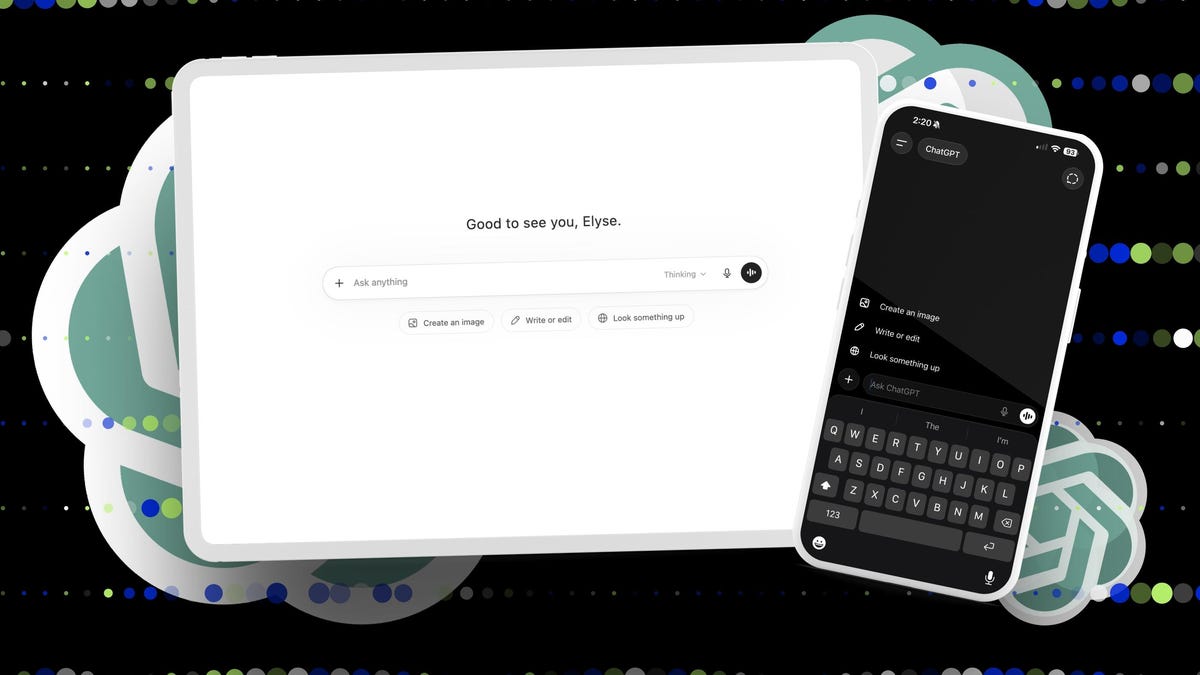
The ChatGPT interface is straightforward: a sidebar and a main chat area with a composer.
On the web and desktop app, click the menu button in the top-left corner to open the sidebar. From there, you can start a new chat, search past conversations, open your image library, browse apps, access sometimes-paywalled tools like Codex, find GPTs, open projects, and view recent chats. Everything is organized in the left sidebar.
At the bottom of the main chat area is the composer, where you type your prompt or use the + tool menu to attach files, photos, and more. On desktop, ChatGPT also includes the model picker, a microphone for dictation, and a Voice Mode button. On mobile, the model picker sits at the top of the chat instead, near the new chat button and additional menu options.
Also: Switching to Claude? How to take your ChatGPT memories
On desktop, the top of the main area offers options to share a chat, start a temporary chat, or open a more menu, where you can group, move, archive, or delete a chat. For personalization, profile, and other settings, open your profile in the bottom-left corner on desktop or the top-right corner of the sidebar on mobile.
Show more
To pick a model on the web, look for the model name in the composer. (It previously also appeared at the top of the main chat area.) On mobile, tap the model name at the top of the chat. Then, if available, select the model you want to use. Most people can stick with the default model and still get great results.
As of June 2026, GPT-5.5 Instant is the default model for free and logged-in users. Paid users can use the model picker to choose that or another option, GPT-5.5 Thinking, while Pro users also get access to GPT-5.5 Pro.
Also: AI Model Release Tracker: Microsoft AI’s first reasoning model arrives
I’d recommend GPT-5.5 Instant for quick writing, summaries, brainstorming, and simple questions, and GPT-5.5 Thinking for more demanding reasoning tasks like research synthesis, coding assistance, and spreadsheet analysis. GPT-5.5 Pro is the powerhouse version, designed for especially complex tasks that benefit from extra reasoning time.
Show more
To begin your first conversation, select “New chat,” enter your message in the text box, and hit Enter or tap Send. For line breaks, use Shift + Enter (or Shift + Return). On both the website and mobile app, you can speak your prompt using the mic icon or launch a Voice Mode session by pressing the waveform button.
ZDNET has shared numerous guides on crafting effective prompts. Simply telling ChatGPT what to do isn’t always sufficient. The key is providing enough background so it can deliver quality results. This might involve explaining the task, identifying your audience, supplying reference materials, setting formatting rules, and more.
Also: Want better ChatGPT responses? Try this surprising trick, researchers say
Rather than saying “give me a LinkedIn photo,” try something like: “Take my attached photo and turn it into a polished professional headshot suitable for my resume and workplace profiles. Keep my face, body, and overall appearance exactly the same.” My additional tip is to keep refining your prompts through follow-up messages until you’re satisfied. Feel free to start a fresh chat if that helps.
Tip: Make sure to explore the tools menu within the text box. For quicker access, type /Image, /Search, /DeepResearch, or “/” plus any other tool name. These tools expand what ChatGPT can accomplish for you.
Check out these additional resources for further guidance:
Show more
What can I do with ChatGPT?
After mastering the basics, you can leverage ChatGPT for far more than simple queries. The possibilities are virtually limitless, but several standout features are particularly valuable for boosting productivity—whether that means generating in-depth research reports, integrating with apps like Canva or Malwarebytes, or building custom GPTs and projects. Here’s what you can accomplish:
1. Search the web
- Who can access? Both paid and free users, subject to usage limits
ChatGPT can browse the internet whenever you need the latest or most current information. Use it for news updates, pricing details, legal information, product specifications, software releases, sports scores, weather forecasts, or anything else that might have changed recently.
All users—both free and paid—can perform web searches through ChatGPT, though their plan’s message limits will apply.
Also: ChatGPT is reportedly scraping Google Search data to answer your questions – here’s how
On the desktop site, pick Web Search from the tools menu. On mobile, go to Plugins in the tools menu, then select Search. Alternatively, just type /Search on either platform. However you access it, try asking: “What did Google announce at I/O 2026?” ChatGPT should rapidly scan multiple web pages and deliver a summarized response with clickable links to the original sources.
As with any AI-generated response, always verify the information independently.
2. Use Deep Research
- Who can access? Both paid and free users, subject to usage limits
Deep Research is designed for more complex inquiries. It can scan multiple sources, cross-reference information, and produce a well-organized report complete with citations. If Web Search is like being handed a single page and a magnifying glass, Deep Research is like receiving an entire folder of documents.
On either the web or mobile app, open the tools menu and select Deep Research. You can also simply type /Deep Research. Once it’s active, pose a detailed, multi-layered question that demands context and analytical reasoning. For example:
“My grandfather was born in Quebec in 1945, relocated to New York, and passed away there. I’m 38 years old, born in New York, and my mother is his daughter, also born in New York. As of 2026, do I qualify for Canadian citizenship by descent? How can I confirm my status and get official documentation?”
Also: I tested ChatGPT’s Deep Research against Gemini, Perplexity, and Grok AI to see which is best
ChatGPT has adjusted Deep Research usage limits multiple times over the past couple of years. The last update I’m aware of gave free users access to a limited lightweight version, Plus subscribers received 25 full reports per month, and Pro subscribers got 250. I’ve reached out to OpenAI for an updated statement.
3. Upload files and analyze them
- Who can access? Both paid and free users, subject to usage limits
ChatGPT supports working with PDFs, documents, spreadsheets, CSVs, images, and other compatible file types. This is one of the AI’s most practical features because it allows you to ask questions about your own files without having to copy and paste large chunks of text into the conversation.
Also: I compared how Gemini, ChatGPT, and Claude can analyze videos – this model wins
On the web or mobile app, tap the + button, then select the file, attachment, or photo option. After uploading, enter a prompt such as: “Summarize this PDF in three bullet points,” “Check this draft for spelling mistakes,” “Convert this spreadsheet into a chart,” or “Give me tips to improve my resume.” For data analysis, ChatGPT can clean up columns, compute totals, identify trends, and interpret what the numbers signify.
4. Connect to apps like Canva
- Who can access? Both paid and free users
Anyone can link external apps to ChatGPT to unlock additional capabilities or streamline their workflow. These integrations were previously known as connectors, but the concept remains the same: you give ChatGPT permission to access a third-party service so it can search through or interact with your connected data.
For instance, you can link Google Drive to work with files stored in the cloud. Or you can add Canva and ask ChatGPT to design a presentation for you. Malwarebytes even offers an app that lets you ask ChatGPT whether an email, letter, or text message you’ve received is a scam. Within a chat, use @ mentions, the tools menu, or a natural-language request like, “Look through my Google Drive for the most recent budget spreadsheet.”
Also: How to use Canva in ChatGPT to build a stunning presentation in minutes – for free
But first, you’ll need to set up the connection. On the web or mobile app, click your profile icon, go to Settings, then Apps, and browse the available app directory. Select an app, click Connect, and follow the authorization steps.
5. Create images and find them in Library
- Who can access? Paid and free, with usage limits
ChatGPT can generate images and edit images you upload. In my experience, it helps to describe the subject, style, layout, colors, aspect ratio, and any text that you want to appear in specific detail. A weak prompt is “make an image of a cat.” A better one is: “Create a 16:9 editorial-style portrait of a Russian blue cat on a pink background with glossy lighting, HD resolution, and no text.”
Also: I got an early look at ChatGPT Images 2.0, and it’s impressive – with one exception
On the web, just ask ChatGPT to create an image, or select Images from the tools menu, if you see it. On mobile, you can type the prompt or use the tools button. After your image appears, ask for changes in the same chat, such as “make it brighter” or “keep the glossy lighting but change the pink background to purple.” To find any image later, open your Library in the left sidebar.
Like Deep Research, ChatGPT often changes the usage limits for image generation. The last numbers I found suggest free users get a couple of images a day, Go users get 20 to 30 images a day, Plus users get about 50 images every three hours, and Pro is unlimited.
Anyone with a ChatGPT account can create images, but you need an account to store them in a library, obviously.
6. Find and use GPTs
- Who can access? Paid and free, with usage limits
GPTs are custom versions of ChatGPT built for specific tasks. You’d basically use a GPT when you want a custom workflow.
Some GPTs help with writing, coding, studying, design, research, or productivity. Some are made by OpenAI, and users or organizations make others. While you can access your GPTs on mobile, I couldn’t find the option to explore them.
Also: How to use ChatGPT to write code – and my top trick for debugging what it generates
On the web, you can open Explore GPTs from the sidebar. Search by topic, select one, and start chatting. On mobile, you’ll just see your own GPTs in the sidebar above recent chats. Free users can use GPTs with limits, while creating GPTs requires a paid plan.
7. Create Projects
- Who can access? Paid and free
Projects are like dedicated workspaces for ongoing work. They keep related chats, files, and instructions together, so ChatGPT can use specific context without making you re-explain everything each time you resume. Think of Projects as folders that remember.
Also: These 7 useful ChatGPT settings are turned off by default (and I can vouch for them)
On the web or mobile, choose Projects in the sidebar, select New project, name it, add instructions, and upload files. You can use a project for a book, coding work, a research topic, a vacation plan, or anything else you want to keep organized. Your instructions can tell ChatGPT what tone, audience, formatting rules, and sources to use. Anyone with a ChatGPT account can save a project.
8. Use Voice Mode
- Who can access? Paid and free, with usage limits
Voice Mode lets you talk with ChatGPT instead of typing. This mode can be useful for practicing a presentation, doing a mock interview, brainstorming, or dumping messy thoughts out loud. On the web or mobile app, open a new chat and tap the waveform icon. Then start talking, interrupt ChatGPT, or ask follow-up questions the way you would in a real one-on-one conversation.
Also: 7 surprisingly useful ways to use ChatGPT’s voice mode, from a former skeptic
As usual, free users get limited access, while paid plans get more.
9. Save memories and personalize
- Who can access? Paid and free
Last but not least, let’s talk about what ChatGPT can remember about you. It has a Memory feature that can remember useful details across chats — up to 130, as I found out recently as a Plus user, before being prompted to clear some. For example, the AI can remember my weight, height, name, family, and other information I’ve told it, so I don’t have to repeat myself when asking personal questions.
But ChatGPT has other features that affect its memory. Custom instructions let you tell ChatGPT how you want it to respond. For example, you could tell it to never use em dashes in its responses. On the web or mobile, click your profile icon, open Settings, then Personalization. From there, you will see options to manage your memory and add custom instructions.
You’ll even see options to change the AI’s tone, make it less warm or enthusiastic, and decide if it uses headers, lists, and emoji.
Also: How to audit what ChatGPT knows about you – and reclaim your data privacy
Finally, there’s Temporary Chat. It’s a little chat bubble button at the top of the main chat area on desktop. Use this feature when you do not want ChatGPT to remember a conversation. It’s like Chrome’s Incognito mode, but for ChatGPT. You can even archive or delete past chats for added privacy. Just open the left sidebar, find the recent chat, click its menu, and choose Archive or Delete.
Of course, you need to be logged in for ChatGPT to remember things about you or to be more personalized.
And there’s more…
ChatGPT has several other buried features because it’s always continually updating with more. Here are a few you might want to try:
- Codex (for Paid users): Available via the sidebar, Codex is ChatGPT’s coding assistant that helps you write, review, and debug code. It can analyze repositories, refactor scripts, and test code.
- Agent Mode (for Paid users): Available via tools, Agent Mode lets ChatGPT perform multi-step tasks, such as opening sites, filling out forms, and generating files. I suggest you
- Agent Mode: Use this feature when you want ChatGPT to operate independently on your behalf.
- Canvas (available to both Free and Paid subscribers): This tool offers a collaborative workspace where you and ChatGPT can simultaneously edit text, write code, or co-create a draft in real time.
- Scheduling Tasks (exclusive to Paid subscribers): Found under the Tasks tab in tools, this feature allows you to set up one-time or recurring actions—like daily digests or weekly reminder check-ins. ChatGPT will execute these tasks automatically and send you a notification via email and the app once complete.
- Shopping (available to Free and Paid users in the US): Simply ask ChatGPT about a product to receive visual results, detailed descriptions, and in some cases, a direct “Buy” button. Launched in September 2025, this feature supports in-chat checkout for participating retailers such as Etsy.
- Study and Learn (available to Paid and Edu subscribers): Located within tools, this interactive learning mode walks you through concepts using structured lessons, quizzes, and guided reasoning instead of simply providing answers—ideal for mastering new subjects step by step.
In short, experiment with the AI, explore its features, discover which tools align with your needs or daily usage, and enjoy the journey with ChatGPT.
Where can I access ChatGPT?
ChatGPT is accessible through the web browser, mobile apps for iOS and Android, as well as dedicated desktop apps for macOS and Windows.
Is there a free version of ChatGPT?
Yes. However, the free tier comes with notable restrictions—such as limited message frequency over short periods and fewer image generation opportunities.
Do I need an account or login?
Not strictly, but to unlock the full experience—including memory, personalized responses, chat history, image library, and project folders—it’s best to create an account.
Which plan is right for me?
Here’s a simple guide:
- Occasional users testing AI for the first time: stick with ChatGPT Free.
- Regular but not daily users who enjoy AI capabilities: choose ChatGPT Go.
- Power users relying on AI daily for writing, planning, research, or troubleshooting: opt for Plus.
- Professionals needing advanced tools for intensive research, coding, or complex workflows: Pro is your top choice.
What are the pricing tiers?
As of June 2026 in the US, ChatGPT Go is $8/month, Plus is $20/month, and Pro offers two tiers: $100/month and $200/month.
Also: Is $20/month still worth it for ChatGPT Plus? I tested it against Free, Go, and Pro—here’s my take
Can ChatGPT make mistakes?
Absolutely. Always verify its responses, particularly regarding medical advice, legal matters, financial guidance, or breaking news.
How can I prevent ChatGPT from saving our conversation?
You can disable memory saving by navigating to Profile → Settings → Personalization → Reference saved memories. Alternatively, manage existing saved memories through the same menu. For temporary conversations you don’t want saved, use the “Temporary Chat” option.
What is Atlas?
Atlas is OpenAI’s ChatGPT-powered browser, exclusive to paid subscribers. Built on Chromium for Mac devices, it integrates ChatGPT directly into the browsing experience—enabling instant question answering, page summaries, smart search assistance, online support, tab management, and automatic form filling.
Show more
