Microsoft has rolled out KB5095093, a preview cumulative update for Windows 11 versions 24H2 and 25H2. This release addresses a wide range of bugs and starts introducing new capabilities, most notably the Point-in-Time Restore feature.
KB5095093 falls under Microsoft’s optional non-security preview program. These updates arrive at the close of each month to trial fixes and features slated for the following month’s Patch Tuesday.
Unlike standard Patch Tuesday releases, these monthly preview updates are optional and do not carry security patches.
To install KB5095093, head to Settings, select Windows Update, and click “Check for Updates.”
Since this is an optional update, you’ll need to click the “Download and install” link when prompted—unless you’ve turned on the “Get the latest updates as soon as they’re available” toggle, in which case it will install automatically.
Alternatively, you can grab the KB5095093 preview update directly from the Microsoft Update Catalog and install it manually.
Key features of Windows 11 KB5095093
After installation, this optional cumulative build bumps Windows 11 24H2 to build 26100.8737 and Windows 11 25H2 to build 26200.8737.
The update brings a host of new tools, headlined by Point-in-Time Restore, which lets Windows users effortlessly wind back their OS, apps, and files to an earlier moment.
“Point-in-time restore allows users to return a Windows PC to the precise condition it was in at a prior point in time. The process takes just a few minutes using restore points,” Microsoft explains.
“Restore points are kept locally on the device and are generated through Volume Shadow Copy Service (VSS). Point-in-time restore enables quicker recovery from problems by reinstating the complete system state recorded within the last 72 hours. The goal of this feature is to reduce downtime and streamline fixes, without requiring advanced technical skills or extended troubleshooting.”
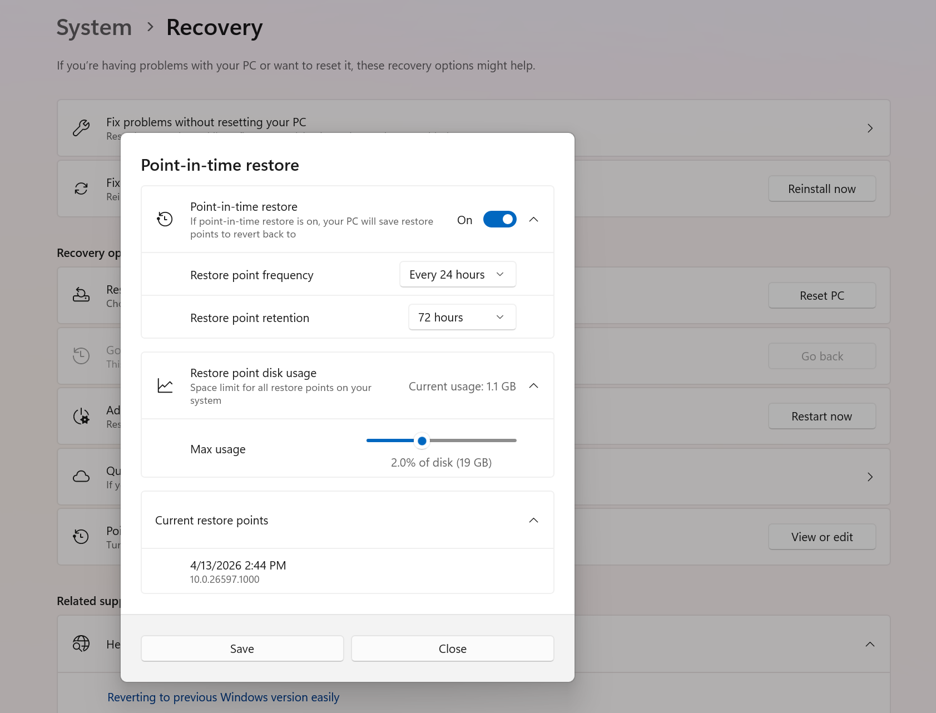
For home users, fresh restore points are generated every 24 hours and purged after 72 hours or when allocated storage runs low. Enterprise customers, however, can customize snapshot intervals to 4, 6, 12, 16, or 24 hours and retain them on the same schedule.
Source: Microsoft
The settings also let you expand the storage reserved for this feature, so you can schedule more frequent snapshots without worrying about them being wiped due to space constraints.
You might assume this is just a rebrand of System Restore, but Microsoft clarifies that Point-in-time restore is built around “dependability and addressing a wider spectrum of issues.” The table below outlines how the two features differ.
| Capability | Point-in-time restore | System Restore |
|---|---|---|
| Configuration method | System Settings | Control Panel |
| Restore point trigger | Scheduled frequency (automatic only) | Event-triggered or manual |
| Retention | Maximum 72 hours per restore point | Indefinite (subject to disk space usage and cleanup) |
| Target scope | Full system state | System files and settings (app and user data coverage varies) |
| System storage impact | Reduced storage footprint thanks to reserved storage (lower) | Unrestricted storage impact (higher) |
| Management | Comprehensive remote management | Minimal remote management |
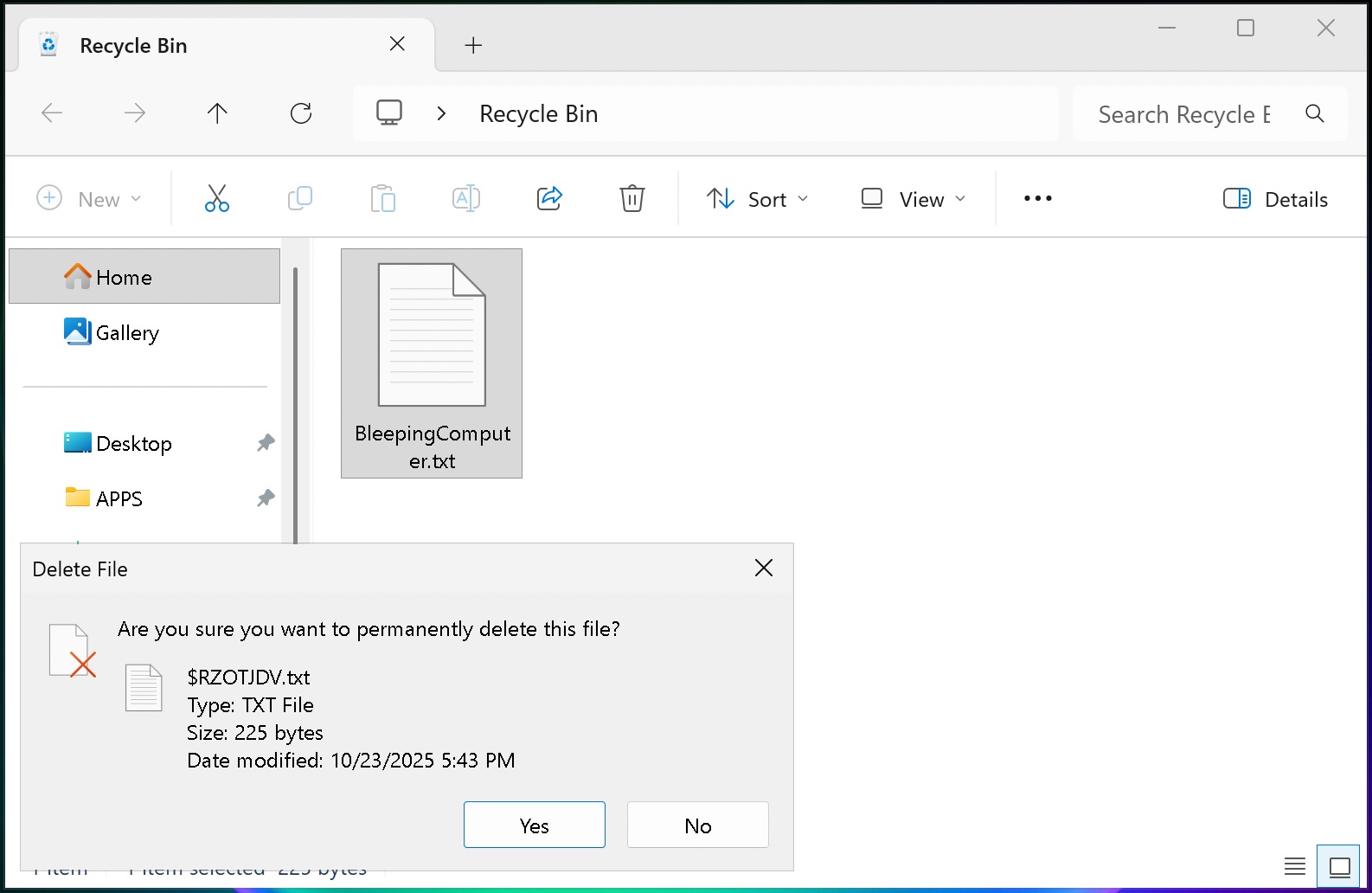
This update also resolves a known glitch where internal file names appeared instead of the actual filenames in confirmation prompts when permanently removing items from the Recycle Bin.
“This update fixes a problem where the confirmation dialog could show an internal Recycle Bin file name rather than the original file name when you permanently delete a file. This may occur after applying the June 2026 security update,” Microsoft states.
The full KB5095093 changelog
Beyond the Recycle Bin fix, the following features are being made available to all Windows 11 users right away:
[Secure Boot] With this release, Windows quality updates now include additional high-confidence device targeting data, broadening the range of devices that qualify to automatically receive new Secure Boot certificates. Devices only obtain the new certificates after demonstrating a solid track record of successful updates, ensuring a measured and phased rollout.
[Authentication] This update strengthens Netlogon secure channel connections between domain controllers, allowing member servers to successfully connect to domain controllers configured prior to 2025.
[Emoji Panel Update] The emoji panel (Windows key + period (.)) now pulls GIF content from GIPHY, following Google’s decision to retire the Tenor API. Starting June 30, 2026, you’ll need the latest Windows update to keep using GIFs in the Emoji panel. Without the update, a “GIF service is not available” error will appear. Installing the newest Windows update will restore GIF functionality.
[Networking] This update enhances how your device connects to shared network resources. Connections leveraged by apps and system functions, such as the NetUseAdd function, now perform more reliably, including unauthenticated (null session) connections.
[Recycle Bin (known issue)] Fixed: This update resolves a problem where the confirmation dialog could display an internal Recycle Bin file name instead of the original file name when permanently deleting a file. This issue may surface after installing the June 2026 security update (KB5094126).
[Taskbar] This update refines how notification badges appear across your apps. Notification counts and badge visuals now refresh correctly, keeping you informed of new activity.
Microsoft is also gradually
Here’s the paraphrased version:
After installing the update, the following features are being rolled out to users:
[Point-in-time restore for Windows] New! This versatile recovery tool lets you quickly revert your PC—including apps, settings, and personal files—to a recently created automatic restore point. It minimizes downtime and makes troubleshooting easier when problems arise. For more details, see Point-in-time restore for Windows.
[Windows Update] New! A calendar view in Windows Update Settings (Settings > Windows Update) allows you to pause updates by selecting an end date, for up to 35 days. You can extend the pause by picking a new end date and re-pausing updates whenever needed. For more information, see Pause updates in Windows.
[Widgets] New! A calmer, more streamlined Widgets experience helps cut down on distractions and enhances default settings and notification management:
Fewer distractions: Widgets no longer pop up when you hover over them. Notifications and taskbar badges are turned down by default.
Simpler setup: Opens directly to the Widgets dashboard by default on first launch.
Personalize: Tailor Widgets to your preferences by selecting Settings in the navigation bar and adjusting any of the default options.
Stay up to date: Dashboard icons display the number of alerts, and badges automatically clear once you leave a dashboard.
Refined defaults: Some default settings are retained based on your usage patterns, while others are adjusted to minimize interruptions.
Performance boost: This update delivers better reliability, faster response times, and improved visual quality throughout the Widgets experience.
[Accessibility] New! This update makes your screen easier to view and gives you more control over your zoom experience:
Screen tint: Apply a full-screen color filter to help ease eye strain and enhance readability. Select from preset tint options, fine-tune the intensity, or set it to activate automatically. Find this feature in Settings > Accessibility.
Magnifier: Type in a specific zoom percentage and adjust it in set increments within the Magnifier window for more accurate, flexible control.
Magnifier settings menu: You can now also change zoom increments directly from the magnifier bar without having to go into Windows Settings each time.
[File Explorer]
New! When you hover over a file in File Explorer Home, quick actions such as Open file location and Ask Copilot appear. This experience is now available for work and school accounts (Entra ID).1
Speeds up the launch time and overall performance of File Explorer.2
Resolves an issue where the OneDrive shortcut in File Explorer would stop functioning when File Explorer was run in administrative mode.
The address bar now handles paths with double backslashes and quotation marks (for example, C:Usersuser or “C:Usersuser”), improving support for a broader range of inputs.
The address bar suggestion dropdown is more dependable and now reliably closes after an item is selected.
This update fixes an issue on File Explorer Home where OneDrive files could show up duplicated in the Favorites section.
This update includes several improvements to the Rename experience:
Fixes an issue where text was repeatedly highlighted when renaming items in folder views.
Fixes an issue where case-only name changes were not immediately updated in folder views for items stored locally or in the cloud.
[Bluetooth] This update enhances reliability and performance when connecting to and using Bluetooth devices:
New! Windows now synchronizes the microphone mute state between the audio mixer and the Hands-Free Profile (HFP) for a more seamless experience with Bluetooth headphones that have mute buttons or indicators.
Accessory compatibility fixes: Improves compatibility with select Bluetooth audio devices, helping AirPods show up faster in pairing mode and enhancing microphone reliability on Beats Studio Pro headphones.
Bluetooth audio stability:
Improves overall Windows stability with certain PC manufacturer drivers (error code 0x9F).
Enhances Bluetooth reliability for voice calls when using Classic Audio devices with the Hands-Free Profile (HFP).
Reduces the time it takes for LE Audio accessories to begin playing audio while the microphone is in use.
Device management: Windows will no longer display a “Remove failed” message when trying to remove Bluetooth devices if the Bluetooth radio is unavailable or has changed since the initial pairing.
Settings experience: Improves stability when navigating the Bluetooth & devices settings page for a smoother, more consistent experience.
Connection reliability and responsiveness:
Cuts down the time it takes for classic Bluetooth audio devices to reconnect after Windows wakes up from hibernation.
Improves reliability when LE Audio accessories disconnect, such as when another device (for example, a phone) connects.
Improves reliability of LE Audio streaming after a connection drops and is re-established.
[Bluetooth and Phone Link] This update improves audio routing for calls placed through a connected phone:
When an outgoing call is placed from a paired phone, audio stays on the phone while ringing and only switches to the PC once the call is answered from the PC.
When Do Not Disturb is turned on in Windows, incoming call audio from a paired phone no longer rings on the PC.
[Voice access and voice typing] New! You can now use voice access and voice typing in French, German, and Spanish. As you speak, your PC refines your text in real time—correcting grammar, punctuation, and recognition errors, and improving clarity even with background noise present. This makes dictation more fluid and reduces the need for manual corrections.3
[Audio] This
[Inbox HD Audio Driver] This update enhances the stability of the inbox HD Audio driver.
[Taskbar] This update fixes an issue where the Start menu might not open correctly when clicking the left edge of the taskbar while icons are aligned to the left.
[Networking]
This update brings networking enhancements for virtualized environments. Confidential Virtual Machines (CVMs) now leverage SR-IOV hardware acceleration by default for better network performance. Additionally, a configuration bug in nested Hyper-V networking setups has been resolved to ensure virtual machines are provisioned with reliable network connectivity.
This update strengthens the reliability of the Windows networking stack. It reduces the occurrence of bug checks (blue screen errors) tied to Wi-Fi power management and enhances cellular (WWAN) connectivity, including better support for IPv6 VPNs. Compatibility with third-party VPN clients and SR-IOV configurations on server hardware has also been improved. Network adapter settings and bindings are now retained when upgrading the operating system.
[Printing] New! When supported, new printer installations now default to the Internet Printing Protocol (IPP), making setup simpler and more dependable. For information about the discontinuation of third-party drivers, refer to the End of Servicing Plan for Third-Party Printer Drivers on Windows. You can manage this behavior through the toggle found in Settings > Bluetooth & devices > Printers & scanners > Default install printers using Windows Ready Print. For further details, see Introducing Windows Ready Print and Modernized Driver Selection.
[Windows Subsystem for Linux (WSL)] This update improves the experience of using WSL in mirrored networking mode when connected to a VPN.
[Display and graphics]
Enhances the reliability of content rendering while scrolling in certain applications that span multiple displays.
Improves the stability and persistence of color profile application.
[Location services] This update adjusts how certain location settings appear in Settings > Privacy & security > Location for better clarity. When location services are disabled, settings such as Default location and Allow location override no longer apply immediately, since apps and services do not receive location data. These settings will now appear greyed out when location services are turned off, helping to reduce confusion about when they are active.
[Search] This update improves the reliability of applying Search-related group policies.
[Input]
New! You can now adjust the size of the right-click zone in Settings > Bluetooth & devices > Touchpad. Choose from default, small, medium, or large to control how much of the bottom-right corner responds to a single-finger right-click. This option is only available on touchpads with a pressable surface. If your device manufacturer offers customization through their own app, a Custom option will appear to reflect those settings.
This update improves the accuracy of English character recognition when using Japanese handwriting input.
[General performance] Reduces the time required to shut down the Background Intelligent Transfer Service (BITS) when you power off your PC.
[General Reliability] This update enhances the stability of explorer.exe. It resolves issues on the login and lock screens related to third-party credential providers, lowers the likelihood of taskbar icons appearing as blank gray placeholders, and improves navigation to Home in File Explorer during OneDrive sync. It also boosts explorer.exe reliability when switching between virtual desktops, improves app launching with shell extensions, and enhances the use of acrylic blur effects in the Start menu, Settings, and the lock screen.
[Apps] Fixes a problem where certain installers and applications could display unexpected elevation (UAC) prompts after installing KB5089549.
[Remote Desktop] This update refreshes the dialog design when enabling Remote Desktop in Settings > System > Remote Desktop.
[Graphics Kernel] Improves the memory-management policy, allowing PCs with more than 32 GB of installed memory to run larger local AI models.
Microsoft has acknowledged a known issue with this update that prevents some third-party applications from launching Microsoft Office applications or opening documents.
The company states they are working on a fix to be released in a future update. In the meantime, affected users should open the application or document directly rather than launching it from the impacted third-party software.
The complete release notes for KB5095093 are available in this support bulletin.

Security teams log 54% of successful attacks and alert on just 14%. The rest move through your environment unseen.
The Picus whitepaper shows how breach and attack simulation tests your SIEM and EDR rules so threats stop slipping by detection.
Get the whitepaper