



Microsoft has officially announced that Windows 11 is receiving a refreshed, modern Run dialog featuring dark mode support and improved speed in the latest preview build 26300.8346.
The Run dialog has been a part of Windows since the Windows 95 days, and it remains a go-to tool for many advanced users on a daily basis.
Simply press Win + R, type in a command, open a file path, launch an application, or navigate to a location instantly without needing to open File Explorer first.
With this update, Microsoft aims to give Run a contemporary look while preserving its core functionality.
Unlike the classic Run dialog, the new version embraces Fluent Design, includes built-in dark mode, and actually outperforms its predecessor in terms of speed.
This is noteworthy because modernized versions of older tools are often criticized for being slower.
.png)
Microsoft shared that redesigning the Run dialog for Windows 11 was no simple task, as the team had to ensure the same level of performance and keep the interface minimal, just like the original Run introduced with Windows 95.
“When we began working on the new experience, we knew the current dialog was fast. We also recognized that we needed to thoroughly understand how everyone was using it. Modernize, be intentional, and evolve it,” Microsoft stated in a blog post.
“To guide the evolution, we temporarily added a measurement to the dialog to track what was being used and to record time-to-show. This revealed several key insights that shaped the design process.”
Microsoft emphasized that speed was a top priority when building the modern Run dialog. This is largely because many people rely on the existing Run dialog to paste text from the clipboard and then copy it again to strip away text formatting.
This workflow works so well thanks to how quickly the current Run dialog appears. The legacy Run dialog takes roughly 103ms to open after pressing the Win + R keyboard shortcut.
Surprisingly, the modern Run is even faster, with a median time-to-show of just 94ms.
“This was a massive collaborative effort — we worked closely with partners across the platform to make these UI surfaces load quickly. The platform improvements we’ve made don’t just benefit Run, but they help make the entire OS more efficient,” the company explained.
Microsoft also indicated that it expects these performance numbers to get even better, as there is still room for further optimization.
Microsoft removes the ‘Browse’ button from the new Run
Before deciding which features to keep and which to remove, Microsoft analyzed how people interact with the current Run dialog. One feature that didn’t make the cut is the Browse button, which allows users to browse a specific folder to open a program.
According to Microsoft, the Browse button is used by less than 0.0038% of users. This figure comes from a sample of 35 million users who open Windows Run.
As a result, Microsoft has removed the Browse button from the modern Run. The company explained that studying how Run was being used and how fast it performed helped establish a foundation for building the modern version.
The modern Run also supports the ~ shortcut, enabling quick access to your home directory. It also displays icons alongside entries, making them easier to recognize without adding visual clutter to the dialog.
How to turn modern Run on or off
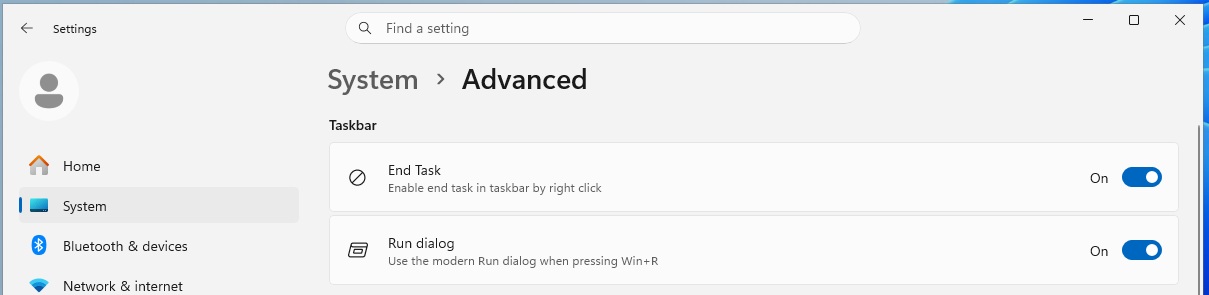
While the modern Run looks impressive and performs well in testing, not everyone may prefer the change, which is why the feature is completely optional and managed through Advanced Settings in Windows.
According to Microsoft, the modern Run dialog is not enabled by default. Instead, you’ll need to go to Settings > Advanced Settings and manually turn on the modern Run, which then replaces the classic version.
Source: BleepingComputer
Microsoft also has plans to introduce additional features to the modern Run and is currently gathering feedback before making it available to a wider audience.
Additional changes included in today’s preview update
Alongside the Run dialog overhaul, Microsoft is enhancing the Windows Share UI for AAD users.
Previously, if you wanted to add an app to the share dialog, you had to open the Microsoft Store, install the app first, and then locate it in the Share list. Now, you can install apps directly from within the Share UI.
Additionally, Magnifier now offers greater control over zoom levels, with preset options including 5%, 10%, 25%, 50%, 100%, 150%, 200%, and 400%.
These updates will be rolled out to all users in the coming months, but for now, you’ll need to download Windows 11 Build 26300.8346 from the new Experimental Channel.

AI chained four zero-days into one exploit that bypassed both renderer and OS sandboxes. A wave of new exploits is coming.
At the Autonomous Validation Summit (May 12 & 14), see how autonomous, context-rich validation finds what’s exploitable, proves controls hold, and closes the remediation loop.
Claim Your Spot
