



**Unlock Your Phone’s Hidden Power: Diagnosing Wi-Fi Issues Like a Pro**
In an era where a strong internet connection is as essential as electricity, a weak or spotty Wi-Fi signal can turn your home into a source of frustration. Whether you’re working from home, streaming your favorite show, or trying to join an important video call, a “dead zone” can derail your entire day.
But what if you could diagnose these issues yourself without calling your internet service provider (ISP) or spending a dime? It turns out that the solution might already be in your pocket. By leveraging a hidden diagnostic tool available on modern Samsung phones, you can pinpoint Wi-Fi problems with professional-grade accuracy.
This article will walk you through how to use this tool to map out your home or office, how to interpret the data, and what to do if you don’t own a Samsung device.
***
### The Problem: A Six-Year-Old Headache
Like many remote workers, I set up my home office during the initial pandemic lockdowns. My priorities back then were not technical; I prioritized natural light, a pleasant view, and a “feng shui” that felt right. Six years later, that cozy setup was causing a major problem: my internet connection was terrible.
My first instinct was to call Verizon to upgrade my plan. However, before throwing more money at the problem, I decided to investigate. Using a hidden feature on my Samsung phone, I discovered the real culprit wasn’t my plan—it was my desk’s location.
***
### The Solution: Samsung’s Connectivity Labs
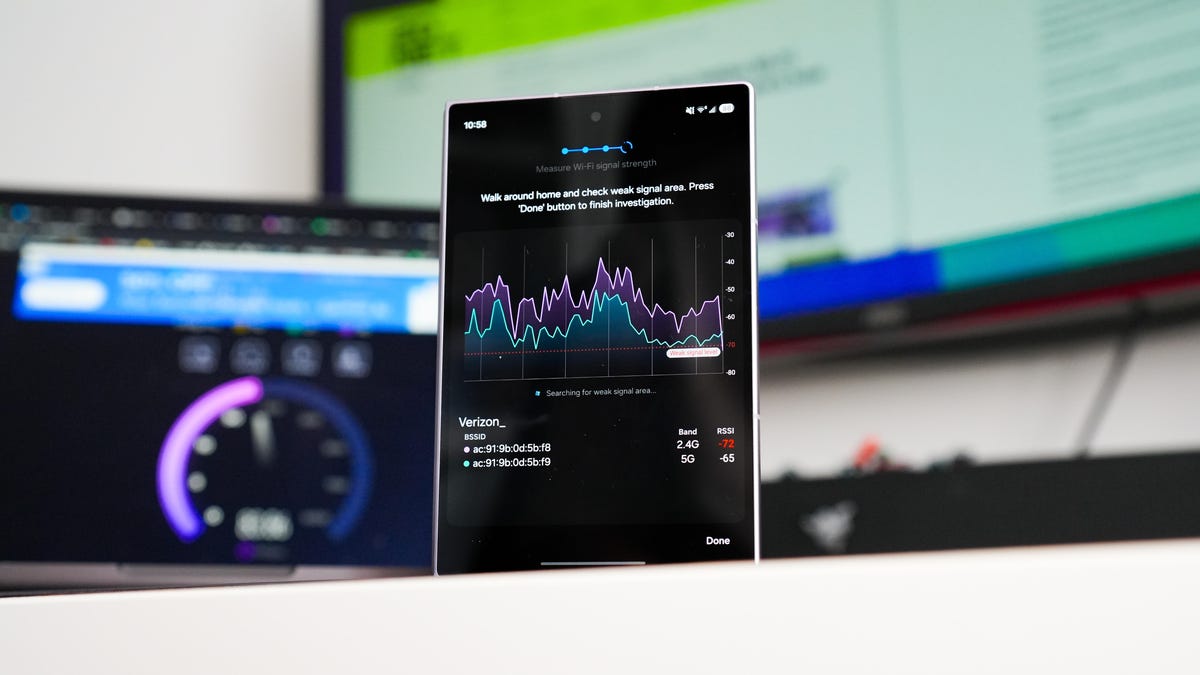
Most modern Samsung Galaxy phones running OneUI 6.0 or newer come equipped with a hidden diagnostic suite called **Connectivity Labs**. This tool is typically used for development and testing, but it contains a powerful Wi-Fi strength meter that functions like a thermal heatmap for your signal.
**How to Access It:**
1. Go to your phone’s **Wi-Fi Settings**.
2. Tap the three-dot menu (usually located in the top right corner) and select **Intelligent Wi-Fi**.
3. Tap the **Version number** seven times. You will see a notification confirming that “Connectivity Labs” is enabled.
4. A new menu will appear directly under the version number where you can access the tools.
**Note:** If you cannot access this feature, ensure your phone is updated to the latest software version.
***
### Putting the Tool to the Test
Armed with Connectivity Labs, I entered my home office. The feature includes a real-time Wi-Fi strength meter that allows you to walk around an area while the phone logs signal strength, creating a visual map of your coverage.
Here is what I learned the hard way:
1. **The 2.4 GHz vs. 5 GHz Split:** I discovered that my 2.4 GHz signal (used by smart plugs and lights) was excellent everywhere. However, my 5 GHz signal (used for high-speed data) plummeted to -80 dBm (decibel-milliwatts) right at my desktop. This indicated significant interference or a weak spot.
2. **The Perfect Spot:** Conversely, the opposite corner of my room—where a large cabinet was placed—showed a healthy signal ranging from -40 to -60 dBm, which is ideal for browsing and streaming.
**The Fix:** I simply moved my desk to the opposite corner of the room.
The result? My download and upload speeds increased by roughly **100 Mbps and 50 Mbps, respectively**. This was a massive improvement that made my expensive internet plan finally worth the cost.
***
### Alternatives for Non-Samsung Users
While Samsung’s Connectivity Labs is robust, it is not the only game in town. If you use an iPhone or a Google Pixel, you won’t find this specific feature in your settings menu.
**WiFiman**
A fantastic alternative is an app called **WiFiman**, developed by Ubiquiti. Available for free on the Google Play Store, it offers a very similar interface to Connectivity Labs. It provides real-time signal strength, download speed testing, and a heatmap generator. In fact, some tech enthusiasts argue that WiFiman is even better than Samsung’s tool for logging and comparing signal strength across different rooms because of its detailed logging features.
***
### FAQ Section
**Q1: I don’t have a Samsung phone. Can I still diagnose my Wi-Fi?**
**A:** Yes, absolutely. You can download a third-party app like **WiFiman** (for Android). While iPhones do not currently have a direct native alternative, you can use apps like **AirPort Utility** (if you have an old iOS device lying around) or **WiFiman** on an Android phone to perform similar diagnostics.
**Q2: What do the dBm numbers mean?**
**A:** Decibel-milliwatts (dBm) measure signal strength. The higher the number (closer to 0), the stronger the signal.
* **-30 to -50 dBm:** Excellent signal.
* **-60 to -70 dBm:** Good enough for browsing.
* **-80 dBm and lower:** Poor signal, likely causing disconnections or slow speeds.
**Q3: Is this the same as “Wi-Fi Verbose Logging”?**
**A:** Technically, yes. Samsung’s Connectivity Labs provides the same granular data that developers use for Wi-Fi Verbose Logging (such as RSSI values). However, Connectivity Labs presents this data in a user-friendly, visual format, making it accessible to the average consumer without needing to export logs or analyze text files.
**Q4: Why did moving my desk actually fix the problem?**
**A:** Wi-Fi signals are susceptible to interference from walls, metal objects, and even mirrors. By moving my desk away from the floor (likely near a metal support beam) and the cabinet, I effectively reduced the physical obstructions between the router and my laptop, allowing the signal to travel more freely.
***
### Conclusion
Before you consider upgrading your internet plan or purchasing a new router, always perform a low-cost diagnostic. The tools to solve your connectivity problems are likely already in your hand.
By utilizing Samsung’s Connectivity Labs or third-party apps like WiFiman, you can transform from a passive consumer of internet services into an active investigator of your home network. In my case, a simple reposition of my desk saved me hundreds of dollars and gave me the reliable connection I needed for work. The next time your internet feels sluggish, remember to look before you leap.
