



# Introduction
Chances are, you’ve seen a browser-based AI agent in action at some point over the past year. It clicks a dropdown menu, waits for the DOM to refresh, captures a screenshot, decides its next click, and waits once more. A single task takes five seconds, with a hundred potential points of failure. If a CSS class name shifts, if the dropdown animates slightly differently, or if the page lazy-loads an unexpected element, the entire flow falls apart.
That’s not a shortcoming of the models themselves — the models are perfectly capable. The real issue is a protocol gap. There was no standardized method for a website to communicate to an agent what actions were actually available on a given page, so agents were forced to interpret pixels one by one, click by click.
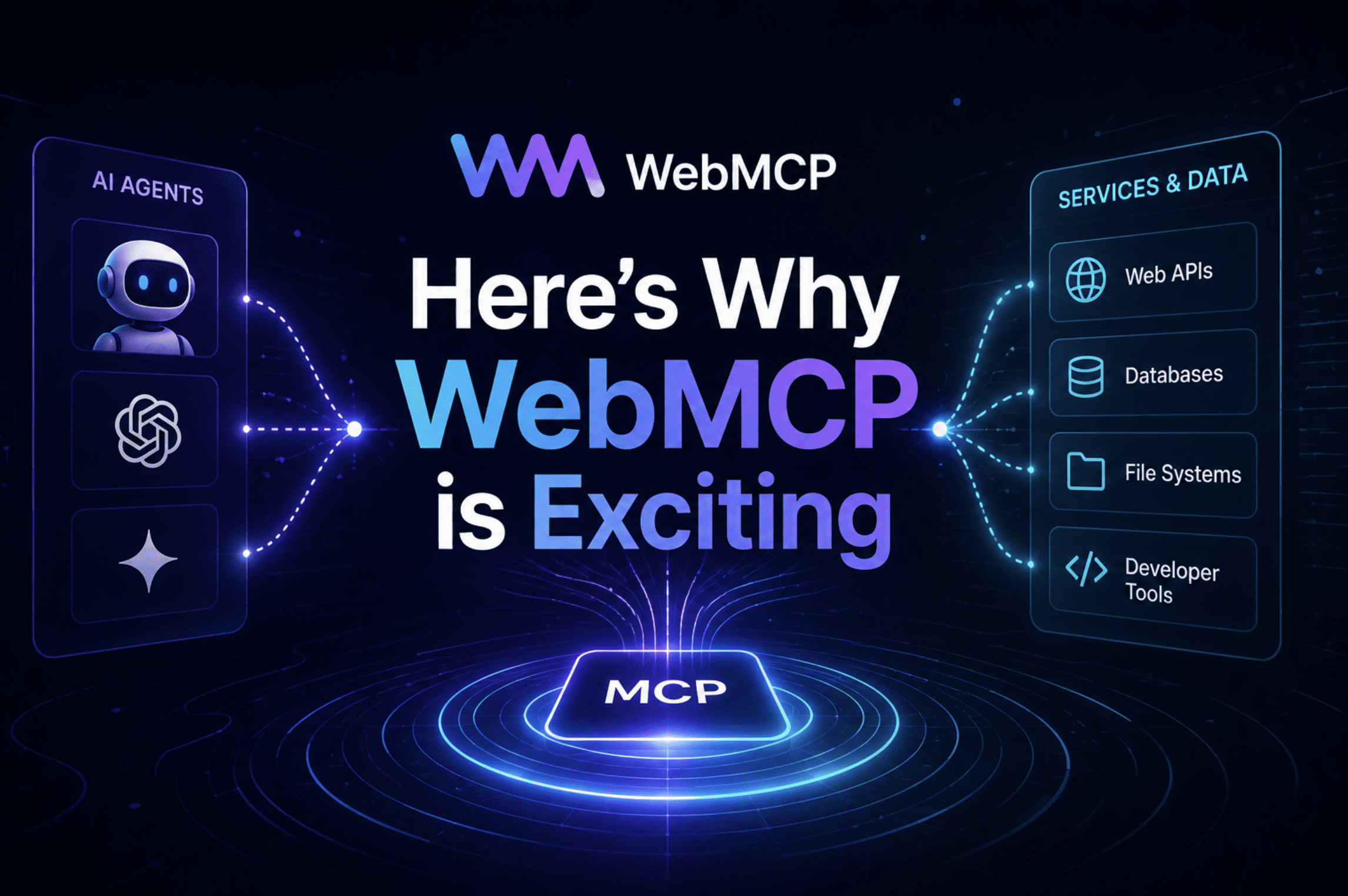
WebMCP is the solution. It’s a proposed open web standard that enables websites to expose structured, callable tools directly to browser-based agents. Rather than an agent attempting to decipher your interface, your site explicitly tells the agent which functions exist, what parameters they accept, and what results they produce. The agent no longer has to guess.
Google unveiled the WebMCP origin trial at Google I/O 2026 on May 21, and Chrome 149 began shipping with it enabled for live traffic — not just for developers toggling a flag. If you build anything on the public web, this is something worth getting familiar with right now.
# What WebMCP Actually Is
WebMCP is a browser-native agent-to-page protocol co-developed by Google and Microsoft. The W3C Web Machine Learning Community Group released the specification as a First Public Working Draft in February 2026, with three editors: Brandon Walderman from Microsoft, and Khushal Sagar and Dominic Farolino from Google.
The central concept is straightforward: a website registers “tools” — named, typed JavaScript functions or annotated HTML forms — through a document.modelContext interface. A browser agent can then discover those tools, understand their purpose from descriptions and JSON Schemas, and invoke them directly instead of simulating mouse clicks.
Imagine the difference between handing someone a remote control versus watching them tap randomly at your TV screen trying to switch the channel.
To place WebMCP in context, it helps to clarify what it is not. Anthropic’s Model Context Protocol (MCP) is a server-to-server protocol — the model connects to your backend over stdio or HTTP. Agent-to-Agent (A2A) governs communication between separate AI agents. WebMCP fills the layer those two leave unaddressed: the client-side page, with the authenticated user sitting right there in the browser.

A three-layer stack diagram showing “Server Layer” “Agent Layer” and “Browser/Page Layer”
WebMCP delivers three core capabilities to bridge this gap:
- Discovery: a standardized mechanism for pages to register tools with agents — such as checkout or filter_results — so that an agent arriving on your page immediately knows what actions are available.
- JSON Schema: explicit definitions of the inputs each tool expects and the outputs it produces, which cuts down on the hallucinations that occur when agents are forced to interpret ambiguous UI elements.
- State: tools can be registered and unregistered on the fly as the page state evolves, so the agent always has an accurate picture of which actions are available at any given moment.
# Why the Old Way Was Broken
Before WebMCP, browser agents relied on two strategies: vision-based actuation and DOM scraping. Vision-based actuation meant the agent captured a screenshot, sent it to a multimodal model, received click coordinates back, performed the click, waited for the DOM to update, took another screenshot, and repeated the cycle. It worked well enough for a demo. It was not reliable enough for production. Every pixel shift, every animation, every lazy-loaded element represented a potential point of failure.
DOM scraping was faster but semantically blind. The agent could inspect which elements existed on the page, but it had to infer their purpose from attribute names, class names, and surrounding text. A button labeled “Go” might mean search, submit, confirm, or navigate — and the agent had to deduce the correct meaning from context every single time.
The data underscores how large this gap really is. Studies comparing structured versus unstructured browser automation have found that structured approaches lower task errors by 67% and boost completion rates by 45% relative to scraping-based methods, according to analysis from WebMCP implementation guides published in 2026.
WebMCP’s answer is to shift the interpretive burden from the agent to the website itself. You know what your checkout button does. You know what fields your support form expects. WebMCP gives you a way to declare that explicitly, in a format the agent can parse without any guesswork.
# The Two APIs: Declarative and Imperative
WebMCP introduces two APIs, both accessible through the document.modelContext interface. Each is tailored to different scenarios, and you can use both on the same page.
// The Declarative API
The Declarative API is designed for HTML forms. You annotate your existing form elements with two new attributes — toolname and tooldescription — and the browser automatically converts the form into a structured tool the agent can invoke. For the most basic use case, you don’t need to write any JavaScript at all.
Here’s what a support request form looks like using the Declarative API:
What this does: The browser reads the toolname and tooldescription attributes and registers the form as a callable tool. When an agent needs to submit a support request, it calls createSupportRequest with the appropriate inputs — no pixel-clicking necessary. The form stays visible to the user the entire time, so they can see exactly what the agent is doing.
If you remove either attribute, the tool is automatically unregistered. You can also add toolautosubmit to the form element to let the agent submit it directly once it has filled in the fields, rather than requiring the user to click the submit button manually.
The Declarative API is the right choice when you have a stable, form-based interface and want the simplest possible path to agent-readiness. Add two attributes. That’s it.
// The Imperative API
The Imperative API covers everything the Declarative API can’t handle: dynamic tools, JavaScript-driven interactions, tools that call APIs directly, and tools whose availability depends on application state. You define these tools in JavaScript using document.modelContext.registerTool().
Here’s a practical example: an order status lookup tool that lets an agent check a customer’s orders without scraping the order history page.
// Register a tool that lets an agent query order status for a logged-in user.
// The agent inherits the user's authenticated session -- no OAuth flow needed.

document.modelContext.registerTool({
  name: "get_order_status",

  // Description is critical
Below is a complete, working example of a tool definition:
// A complete tool definition for retrieving order information.
// This is the minimum viable structure every tool should follow.

document.modelContext.registerTool({
  // The tool name uses snake_case and should reflect the action performed.
  name: "get_order_status",

  // The description field is what the agent relies on to decide when to call this tool.
  // A vague description like "get orders" teaches the agent nothing useful.
  description:
    "Returns the order number, current shipping status, and estimated delivery location for orders in a selected time period. Call this when the user asks about their orders or a delivery.",

  // inputSchema follows the JSON Schema spec and defines what inputs this tool accepts.
  inputSchema: {
    type: "object",
    properties: {
      timeframe: {
        type: "string",
        description: "The time period to search orders within.",
        enum: [
          "today",
          "yesterday",
          "last_7_days",
          "last_30_days",
          "last_6_months",
        ],
      },
    },
    required: ["timeframe"],
  },

  // execute is the function the browser calls when an agent invokes this tool.
  // It receives the validated input and should return a string the agent can read.
  execute: async ({ timeframe }) => {
    // Fetch from your existing backend -- the user's session cookies are already present.
    const response = await fetch(`/api/orders?timeframe=${timeframe}`);
    const orders = await response.json();

    if (!orders.length) {
      return `No orders found for ${timeframe}.`;
    }

    // Return a structured summary the agent can interpret and relay to the user.
    return orders
      .map(
        (o) =>
          `Order #${o.id}: ${o.status}, estimated delivery to ${o.location}`
      )
      .join("n");
  },
});
What this does: The tool is registered with a name, a plain-language description, a typed input schema, and an async execute function. Whenever a browser agent requests the list of available tools on the page, it encounters get_order_status along with its full schema. It knows precisely what parameters to supply and what kind of result to anticipate.
If you ever need to remove a tool from the agent’s reach, for instance when a user signs out or moves to a part of the site where that tool no longer applies, you can accomplish this with an AbortController:
// Removing a tool that should no longer be reachable.
// This is especially relevant for SPAs where sections change without a full page load.

const controller = new AbortController();

document.modelContext.registerTool(toolDefinition, { signal: controller.signal });

// Later, when the user logs out or the tool is no longer relevant:
controller.abort(); // Tool is unregistered immediately
What this does: Supplying an AbortSignal alongside registerTool provides a clean mechanism for deregistering tools without needing to keep track of references yourself. The moment you invoke controller.abort(), the tool vanishes from the agent’s discovery list. This matters in single-page applications where the set of meaningful actions shifts as the user navigates through the product.
You can also retrieve every tool currently registered on the page by calling document.modelContext.getTools(), and you can invoke any of them by hand with document.modelContext.executeTool(). The Model Context Tool Inspector Chrome extension relies on exactly this approach so you can validate your tools before a real agent ever calls them.
# The Authentication Breakthrough
This is the aspect of WebMCP that deserves far more attention than it typically receives. Conventional MCP integrations, the server-side variant, demand OAuth client registration, token exchange, refresh logic, secure credential storage, and audit logging. Every service the agent needs to talk to requires its own OAuth flow. For a developer building an agent that touches five different tools, that means five separate integrations to build and maintain.
WebMCP avoids all of this because it runs inside the browser, on a page where the user is already signed in. The agent inheriting the user’s session cookies is not a workaround; it is the intended design. If the user is logged into your application, any action the user is permitted to perform, the agent is also permitted to perform. The session itself serves as the credential.
This matters beyond mere developer convenience. It reshapes the security model. The agent cannot carry out any action through WebMCP that the logged-in user could not carry out directly. It cannot escalate its privileges. It cannot reach another user’s data. The existing permission boundaries of your web application are enforced automatically.
One detail worth highlighting: the WebMCP security guidance is explicit that agentInvoked, the boolean flag on SubmitEvent that indicates whether an agent triggered the form submission, should be treated as a signal, not as a credential. Do not rely on it to grant extra permissions. It tells you who submitted the form; it does not verify identity.
# A Real Use Case: Travel Booking End to End
Google used travel booking as one of its primary examples at I/O 2026, and it illustrates the difference WebMCP makes better than any abstract discussion could.
Without WebMCP, a browser agent trying to book a multi-city trip looks like this: it loads the flights page, takes a screenshot of the search form, locates the “From” field, clicks it, types a city name, locates the “To” field, types the next city, finds the date picker, which uses a custom calendar widget that the agent has to interpret visually and click through, locates the passenger count selector, interacts with it, then submits the search and waits to see whether the entire chain of actions produced the correct results.
One broken selector, one animation the agent misses, one form field that resets when another changes, and the booking fails silently or produces incorrect output.
With WebMCP, the travel site registers a book_flight tool:
// A flight booking tool that accepts structured input from an agent.
// The agent does not need to interact with the UI at all for the search step.
document.modelContext.registerTool({
name: "search_flights",
description:
"Search available flights between two cities for given dates and passenger count. Returns matching itineraries with price, duration, and layover details.",
inputSchema: {
type: "object",
properties: {
origin: {
type: "string",
description: "Departure airport IATA code (e.g. LOS for Lagos).",
},
destination: {
type: "string",
description: "Arrival airport IATA code (e.g. LHR for London Heathrow).",
},
departure_date: {
type: "string",
description: "Departure date in YYYY-MM-DD format.",
},
return_date: {
type: "string",
description:
"Return date in YYYY-MM-DD format. Omit for one-way flights.",
},
passengers: {
type: "integer",
description: "Number of passengers. Must be between 1 and 9.",
minimum: 1,
maximum: 9,
},
cabin_class: {
type: "string",
enum: ["economy", "premium_economy",
import { tool } from "@anthropic-ai/webmcp";
tool("search_flights", {
description: "Search for available flights between two destinations.",
inputSchema: {
type: "object",
properties: {
origin: {
type: "string",
enum: ["LAX", "SFO", "JFK", "ORD"],
description: "Departure airport code.",
},
destination: {
type: "string",
enum: ["LAX", "SFO", "JFK", "ORD"],
description: "Arrival airport code.",
},
departure_date: {
type: "string",
format: "date",
description: "Date of departure.",
},
return_date: {
type: "string",
format: "date",
description: "Date of return.",
},
passengers: {
type: "number",
description: "Total number of travelers.",
},
cabin_class: {
type: "string",
enum: ["economy", "premium_economy", "business", "first"],
description: "Requested seating class.",
},
},
required: ["origin", "destination", "departure_date", "passengers"],
},
execute: async ({ origin, destination, departure_date, return_date, passengers, cabin_class }) => {
// Invoke your current flight search API.
// The user's session manages authentication -- no token handling required.
const params = new URLSearchParams({
origin,
destination,
date: departure_date,
pax: passengers,
cabin: cabin_class || "economy",
...(return_date && { return: return_date }),
});
const response = await fetch(`/api/flights/search?${params}`);
const results = await response.json();
if (!results.flights.length) {
return "No flights were found for those search criteria. Try adjusting the dates or selecting alternative airports.";
}
// Produce a readable summary that the agent can relay to the user.
return results.flights
.slice(0, 5)
.map(
(f) =>
`${f.airline} ${f.flight_number}: leaves at ${f.departure_time}, arrives at ${f.arrival_time}, ${f.stops === 0 ? "nonstop" : `${f.stops} stop(s)`}, ${f.price} USD`
)
.join("n");
},
});
How it works: The agent invokes search_flights with clearly typed and validated parameters. No manual screen interaction is needed for the search step. The tool contacts your existing API, the user's session takes care of authentication, and the agent receives a structured list of results that it can summarize and display. The entire search workflow that previously required multiple click-and-screenshot cycles now completes in a single function call.
# How to Get Started with WebMCP Today
Below is a hands-on roadmap from scratch to a functioning WebMCP setup.
// Step 1: Turn on the Chrome Flag for Local Development
Open chrome://flags/#enable-webmcp-testing in Chrome, switch it to Enabled, and restart the browser. This activates the WebMCP APIs in your local environment without requiring an origin trial token.
// Step 2: Install the Model Context Tool Inspector
Get the Model Context Tool Inspector extension from the Chrome Web Store. It allows you to view which tools are registered on any given page, invoke them by hand, examine their JSON Schemas, and check that the output is structured in a way the agent can interpret. By default it sends prompts to gemini-3-flash-preview, so you can immediately test natural language calls against your tools.
// Step 3: Enroll in the Origin Trial for Production
If you wish to test WebMCP on live traffic before it becomes a built-in browser feature, register for the Chrome origin trial. You will receive a token to set in your HTTP headers or a meta tag, and Chrome 149+ visitors on your domain will have WebMCP enabled.
// Step 4: Register Your First Tool
Begin with the Declarative API on your most frequent form—search, contact, checkout. Supply a toolname and tooldescription. Open DevTools, navigate to the Application tab, locate the WebMCP panel, and verify that your tool shows up. That is the simplest working implementation.
For dynamic tools, switch to the Imperative API and register them during your page initialization. Write descriptions for the agent rather than for yourself—being specific matters more than being brief. "Search flights between two airports for a given date" is helpful. "Search" alone is not.
// Step 5: Managing Cross-Browser Compatibility
For broad browser support at present, use the @mcp-b/global polyfill, which degrades gracefully on browsers that do not yet offer native WebMCP. Microsoft Edge 147 already includes native WebMCP support. Firefox has not published a timeline. Safari has an entry in the WebKit bug tracker but no formal commitment.
npm install @mcp-b/global
// Place at the top of your main entry file, before any tool registration
import "@mcp-b/global";
// Once imported, document.modelContext is accessible in every browser.
// On Chrome and Edge with native support, the polyfill does nothing.
// On other browsers, it provides a compatible layer that routes tool calls
// through a fallback mechanism
How it works: The polyfill exposes the document.modelContext interface on browsers that lack native WebMCP. Your tool registration code remains identical across all environments. When Chrome eventually ships WebMCP as a default feature, the polyfill steps aside on its own.
# In Summary
The web was designed for people to navigate. For the past couple of years, agents have been attempting to use it the same way—clicking, waiting, taking screenshots, making educated guesses. That approach was always a temporary fix.
WebMCP provides the foundation for the next evolution: websites that communicate directly with agents, telling them "here is what you can do on this page, here is what you need to supply, and here is what you will receive in return." No guesswork. No brittle pixel-based scraping. No breakage every time a CSS class gets renamed.
The origin trial is active right now. The effort to get started amounts to adding two HTML attributes to a form. The risk of adopting early is practically nil. The reward—being the site agents default to once the ecosystem matures—depends on timing, not possibility, and given the spec contributors and the browser adoption trajectory, it is a matter of when rather than if.
If you are ready to begin: enable the Chrome flag, add the inspector extension, review the official WebMCP documentation, and annotate your first form this week. The early-mover window is open. It will not remain open indefinitely.
Shittu Olumide is a software engineer and technical writer passionate about harnessing emerging technologies to tell engaging stories, with a sharp eye for detail and a talent for making complex ideas accessible. You can also find Shittu on Twitter.
